Wipe your KeepKey
Wiping erases the wallet, PIN and settings from your KeepKey. Your coins stay on the blockchain. Your recovery phrase brings the wallet back on any KeepKey.
Before you wipe
- Have your recovery phrase in front of you. After a wipe, it is the only way back to this wallet.
- If you used a passphrase, have that too. Without it, the restored wallet opens empty.
- Keep both private. KeepKey support never asks for them.
Not sure your backup is right? Run the backup check first. It doesn’t erase anything.
Wipe from KeepKey Desktop
- Connect your KeepKey and unlock it.
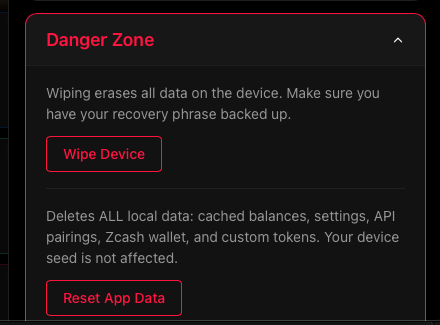
- Open Settings and expand Danger Zone.
- Choose Wipe Device, then Confirm Wipe.
- Your KeepKey shows WIPE DEVICE and asks if you want to erase your private keys and settings. Press and hold the button on your KeepKey to confirm. If you let go too soon, it asks again.
- Wait for the wipe to finish. KeepKey Desktop then shows setup, the same as for a new device.
Check that it worked. Settings closes whether the wipe succeeds or fails, so closing alone doesn’t mean your KeepKey was wiped. A finished wipe takes you to setup, the same as a new device. If setup doesn’t open, don’t assume the wipe worked.
Forgot your PIN and can’t unlock? Use Forgot your PIN? Wipe device on the PIN screen instead. See Forgot KeepKey PIN.
After the wipe
Your KeepKey is empty and ready to use again. In setup you can:
- Recover Existing Wallet with your recovery phrase. See Restoring a wallet.
- Create a new wallet with a new recovery phrase.
Wipe Device is not Reset App Data
Reset App Data, also in Danger Zone, only clears KeepKey Desktop’s data on this computer. Your KeepKey keeps its wallet. To erase the wallet from the device, use Wipe Device.
If a step doesn’t finish
Contact support and tell us which step stopped and what KeepKey Desktop and your KeepKey showed. Never send your recovery phrase, passphrase or PIN. Support will never ask for them.