PIN
Your KeepKey PIN protects the device from unauthorized physical use. You set it during setup, and you can change it any time from the desktop application’s settings.
Unlocking with your PIN
Every time you connect a configured device to the desktop application, you’ll be prompted to unlock it with your PIN before any wallet operations are available.
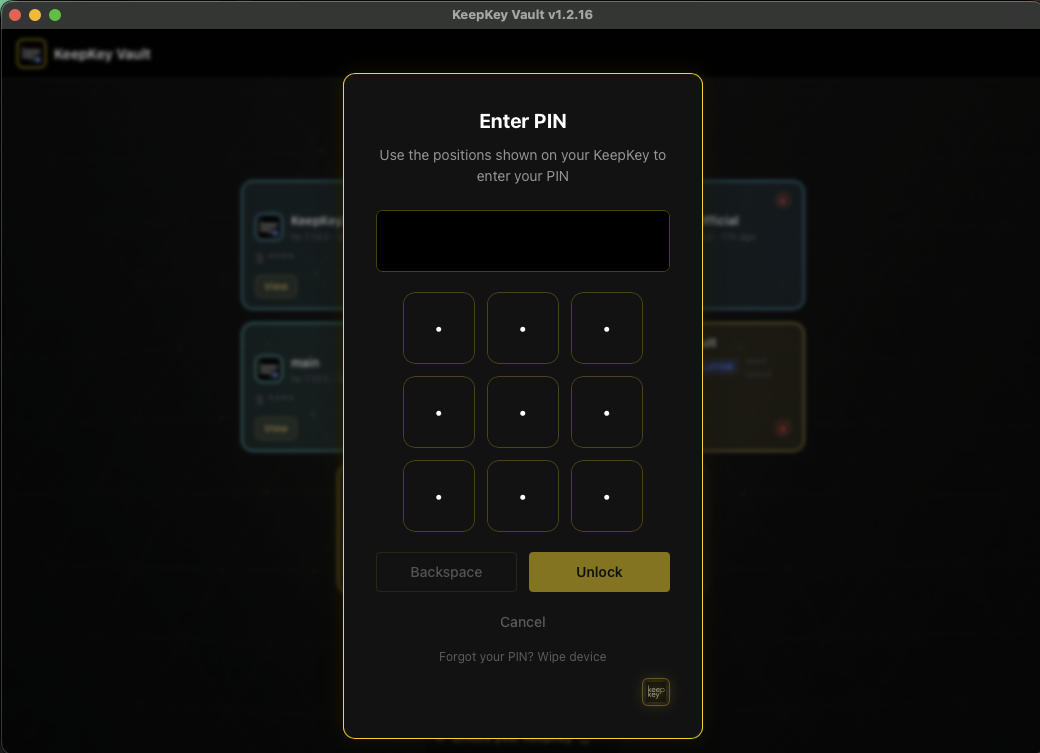
If you forget your PIN, click Forgot your PIN? and the desktop application will walk you through wiping the device and recovering from your seed.
Scrambled entry
You enter your PIN on a blank grid in KeepKey Desktop, matching positions to the shuffled digits shown on the device. Your computer never learns the digits. How it works and what it protects against: Your PIN is Scrambled.
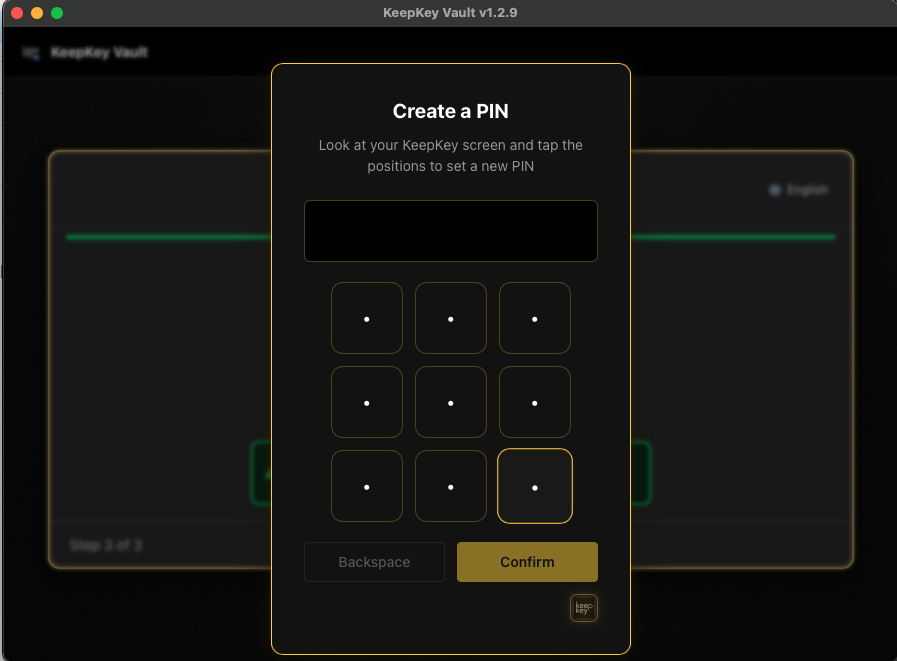
Choosing a PIN
- 1 to 9 digits — use at least 4. Longer is stronger, but only if you remember it accurately.
- Not
1234or your birthday. Don’t use something an attacker can guess. - Not on your recovery phrase paper. Keep the two apart.
- Something you’ll remember. Wrong attempts don’t wipe the device — each failure after the third doubles the wait before you can try again. If you truly forget your PIN, you’ll need to wipe the device and recover from your recovery phrase.
Changing your PIN
Open Settings → Security, find PIN Protection and click Change. The desktop application walks you through replacing the current PIN with a new one. You’ll need to enter the current PIN once to authorize the change.
Removing the PIN
You can remove the PIN entirely — but don’t. A KeepKey without a PIN has no protection against physical theft. If someone picks up the device, they can use it to sign transactions and drain your wallet.
If you really need to remove it (for example, to set a new one that’s completely different), open Settings → Security, click Remove next to PIN Protection, then Confirm.
Related
- Your PIN is Scrambled — how the grid works
- Settings — all security settings in one place