Firmware Updates
The desktop application checks for firmware updates automatically and notifies you when a new version is available. Updating firmware adds security fixes, new features, and support for additional chains.
Before you update
Write down your recovery phrase first (or confirm you’ve already written it down and stored it somewhere safe). Firmware updates are low-risk — they’re cryptographically signed by KeepKey and verified by the device before installation — but if something goes wrong, the recovery phrase is your way back.
Verify your written backup using the non-destructive backup check. Do not wipe a device holding funds merely to test recovery. Never enter recovery words into a website, ordinary text field or emulator.
Signed firmware
Use the official updater and check the release identity. Signature verification helps establish that firmware was authorized by its signing keys; it does not establish that the software is free of defects. Development and unsigned firmware paths can involve device warnings and different storage behavior. Never treat a warning as a routine step in a production update.
Bootloader and firmware updates are distinct. Follow the instructions for your device and selected release, including any backup and recovery requirements.
The update flow
When a new firmware is available, the desktop application shows an update prompt in your portfolio. Click through and follow the bootloader-entry instructions.
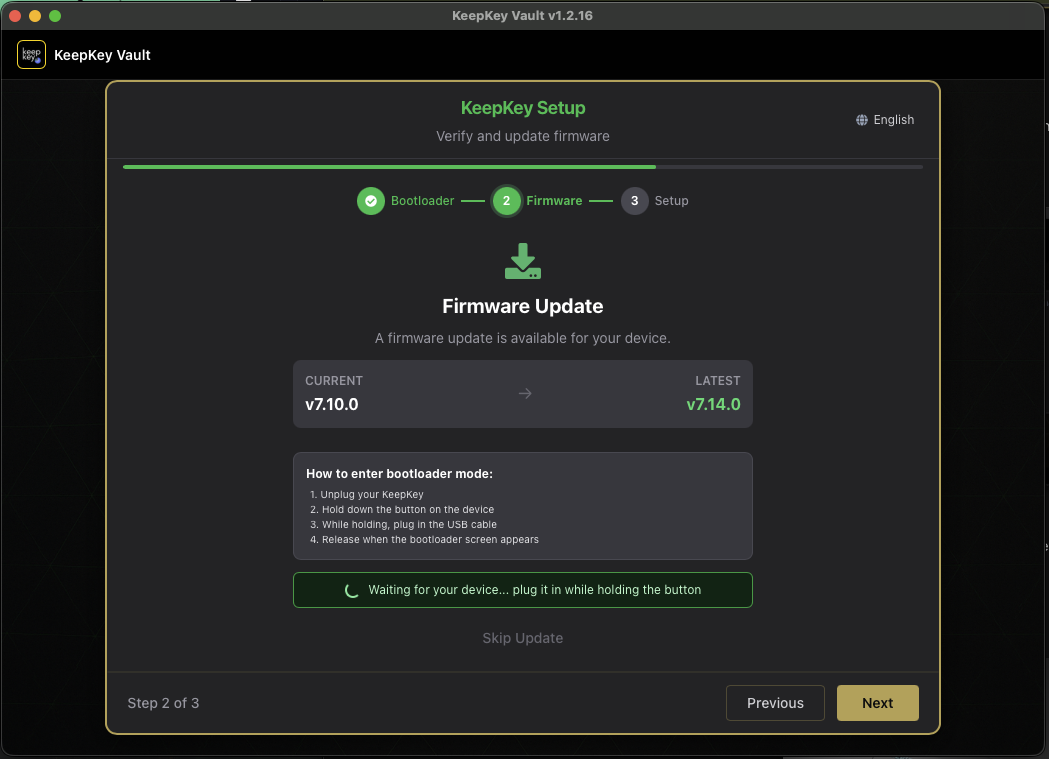
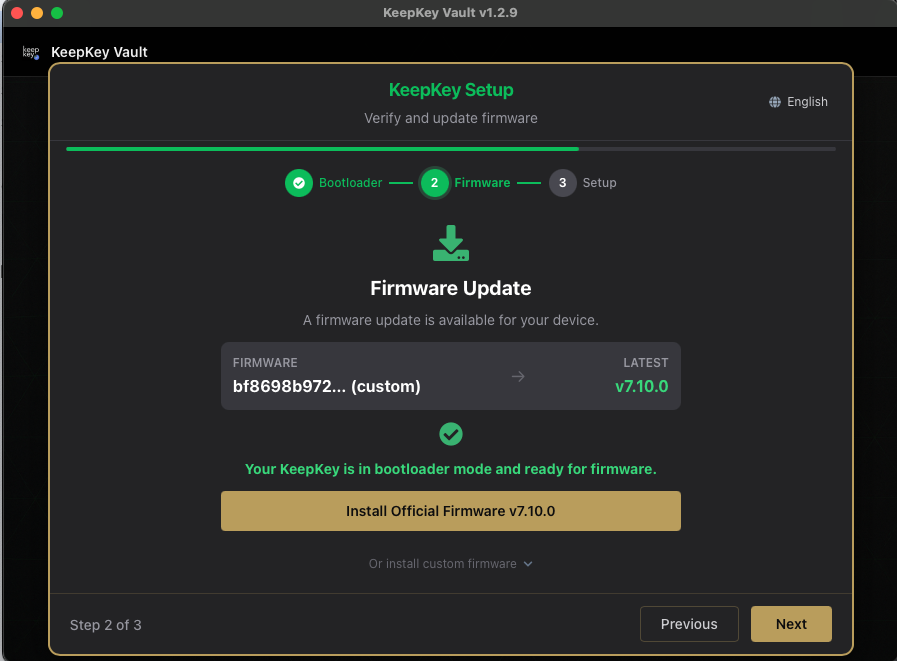
To enter bootloader mode: unplug the device, hold the device button, and plug it back in while continuing to hold the button. Once the desktop application detects the device in bootloader mode, the firmware wizard opens at step 2 of 3 and shows you the exact version being installed.
1. Confirm on device
Click Install Official Firmware and the device asks you to confirm on its own screen.
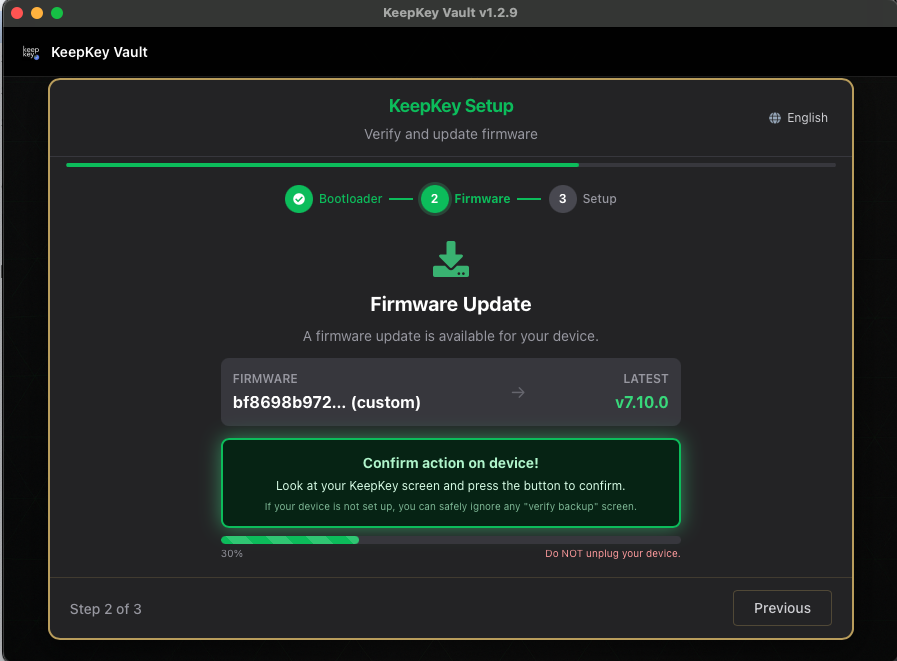
Read the new firmware version on the device screen — it should match what the wizard showed. Approve if it looks right. The progress bar advances as the firmware is written.
2. Download and install
The updater downloads the selected firmware and coordinates verification and installation with the device. Do not unplug the device during this step. Interrupting a firmware write can leave the device in an unusable state (it can still be recovered, but it’s a hassle).
3. Restart
After the new firmware is installed, the device restarts.
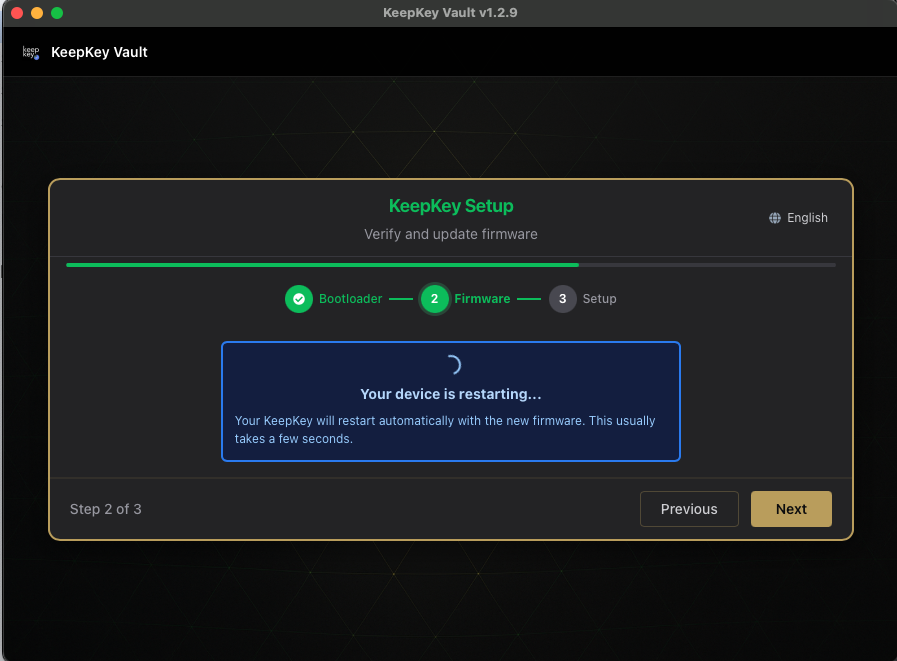
You’ll be prompted to enter your PIN (if you have one set) and then you’re back in the portfolio view, now running the new firmware.
Updating a KeepKey that hasn’t been used in years
Older KeepKeys need two updates: first the bootloader, then the firmware. KeepKey Desktop walks you through both, in that order (Bootloader, then Firmware).
- Connect your KeepKey and open KeepKey Desktop. If the bootloader is out of date, it shows Bootloader Update.
- Follow Put Your Device in Bootloader Mode: unplug it, hold the button, plug it in while holding, and release when the bootloader screen appears.
- Choose Update Bootloader to v… and confirm on the device. Don’t unplug it during the update.
- KeepKey Desktop then moves on to Firmware. Choose Install Official Firmware v… and confirm on the device.
- When the app asks you to reconnect, plug the device in normally. Don’t hold the button, or it goes back into bootloader mode.
Your recovery phrase and funds are not affected by either update. Don’t use the old KeepKey Updater app; it has been retired, and KeepKey Desktop does its job. Returning after a long break? See Coming back to an old KeepKey.
If the update fails
Firmware updates are designed to be safe even when things go wrong, but occasionally the device can end up in bootloader mode — a recovery state where it’s waiting for a new firmware to be flashed.
If this happens:
- Don’t panic. Your recovery phrase still reproduces the wallet.
- Leave the device plugged in.
- Restart the desktop application.
- It should detect the device in bootloader mode and offer to re-install firmware.
- Follow the prompts to complete the update.
If the desktop application can’t detect the device after a failed update, unplug it, wait 10 seconds, and plug it back in while holding the device button. This re-enters bootloader mode cleanly.
Which version number is which?
KeepKey Desktop, the firmware and the bootloader each have their own version number. They’re easy to mix up:
| What | Looks like | Where to see it |
|---|---|---|
| KeepKey Desktop (the app) | 1.x | Settings → Application → App Version |
| Firmware (on the device) | 7.x, for example 7.14.1 | Settings → Device → Firmware |
| Bootloader (on the device) | 2.x, for example 2.1.4 | Settings → Device → Bootloader |
A firmware update changes the software on your KeepKey, not the app. To update the app itself, see Check your app version and update it. For the current published firmware, see Release status.
Related
- Settings → Device Overview — see current firmware version
- Recovery Phrase — make sure your phrase is safe before updating