Mobile App
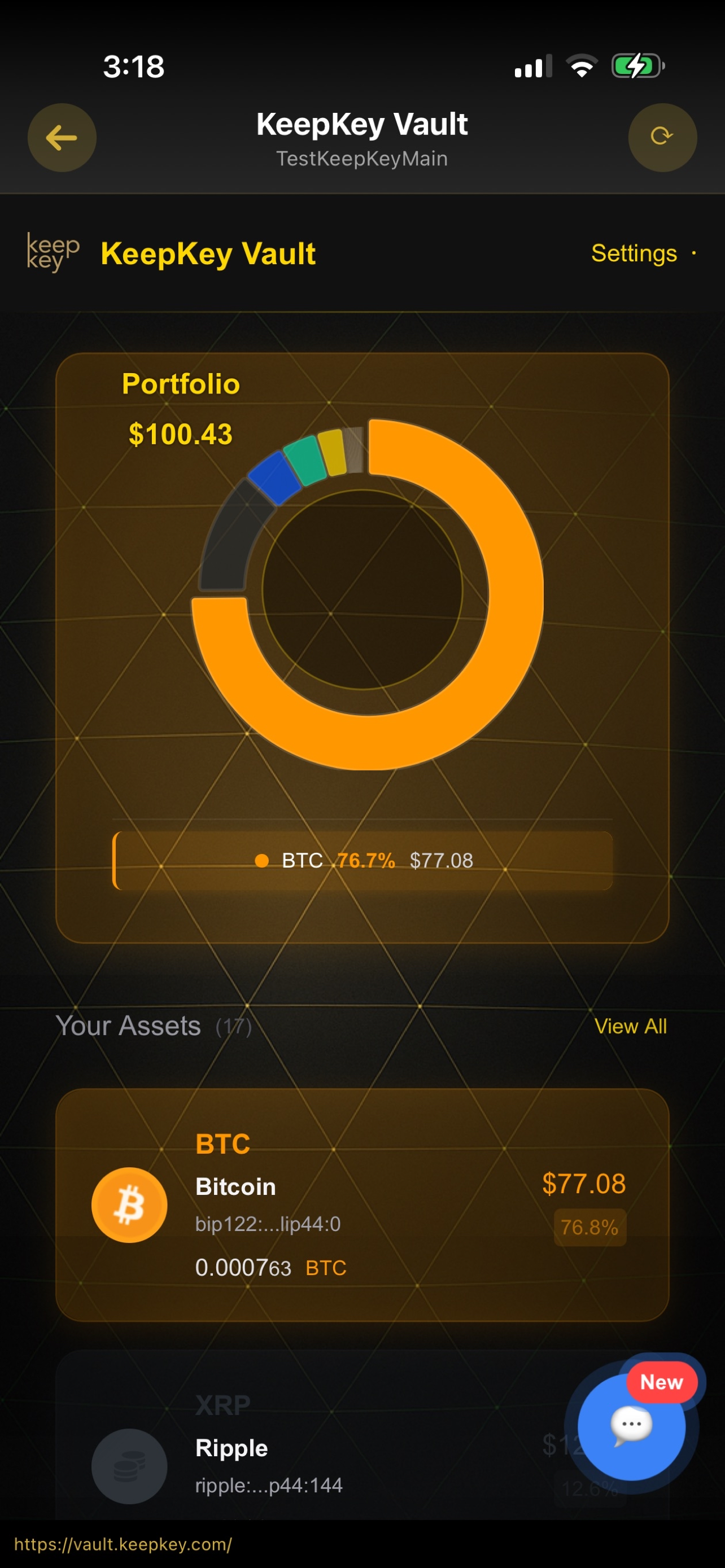
The KeepKey mobile app is a mobile companion for your desktop wallet. Once paired with the desktop application, it lets you view your portfolio, see incoming funds, and generate receive addresses on the go. You pair once via QR code and the phone becomes a read-only window into your wallet.


What it does
- Portfolio on the go — Your balances, total value, and asset breakdown, synced from the desktop application.
- Asset detail views — Drill into any asset to see its address, balance, and recent activity.
- Receive addresses — Generate fresh receive addresses from your phone (the actual address derivation still happens on the hardware device through the desktop pairing).
- AI Assistant — A built-in helper that explains what you’re looking at, suggests next steps, and answers questions about the app.
What it doesn’t do (yet)
The mobile app is intentionally a companion to the desktop application, not a standalone wallet. It does not:
- Sign transactions independently. Signing still requires the hardware device, which is paired with the desktop application. If you want to sign a transaction, do it from the desktop.
- Store private keys. Keys live on the hardware device only. The phone never has access to them.
- Work without a paired desktop. The phone only has access to your wallet while it’s paired with a running desktop application — there’s no local signing path on the phone.
This architecture means losing your phone never puts funds at risk. The phone is just a view into the wallet; the wallet itself is the hardware device and the paired desktop application.
Install
- iOS: Search “KeepKey Mobile” on the App Store or scan the QR code on the releases page.
- Android: Search “KeepKey Mobile” on Google Play.
- TestFlight / beta: Early builds are occasionally distributed through TestFlight for iOS. Check the GitHub releases for links.
Pair with the desktop application
The phone connects to your desktop application by scanning a one-time QR code pairing code generated in the desktop app. You scan it once, and the phone remembers the pairing — you don’t need to re-pair every session.
Steps
- Open the desktop application on your computer and make sure your KeepKey is connected and unlocked.
- Enable the API bridge in Settings → API Servers if it’s not already on. (See Settings → API Servers for why this is off by default.)
- Generate a mobile pairing code. In the desktop app, open Settings → Mobile (or the equivalent mobile panel) and click Generate Pairing Code. The app shows a QR code that’s valid for a short time — a couple of minutes — and displays a countdown.
- Open the mobile app. On first launch, you’ll be prompted to pair with a desktop session. Tap Scan QR Code.
- Scan the QR code on your computer screen with the phone camera. The phone confirms the pairing and stores a bearer token for future connections.
- Done. The mobile app can now fetch your portfolio, balances, and addresses from the paired desktop session.
If the pairing code expires before you scan it, just generate a new one. Expired codes can’t be reused.
Security model
The mobile app’s security comes entirely from the pairing mechanism:
- No private keys on the phone. The phone holds a bearer token that lets it make read-only requests to the desktop application. The token can be revoked at any time from the desktop.
- Signing stays on the hardware device. The phone can generate receive addresses (the device still verifies them), but any transaction that spends funds must be approved on the hardware device through the desktop.
- Losing the phone is not catastrophic. Revoke the pairing from the desktop and the phone loses all access immediately. Your funds are safe.
- Lock the phone. Your operating system’s screen lock (Face ID, fingerprint, PIN) is a meaningful part of the mobile app’s security. Don’t disable it.
Revoking a mobile pairing
If you lose your phone or want to disconnect a paired device:
- Open the desktop application
- Go to Settings → API Servers
- Find the mobile app in the list of paired applications
- Click Revoke
The phone will immediately lose access. Next time it tries to connect, it’ll see an expired token and prompt you to re-pair.
Related
- Desktop Application — the companion app the mobile relies on
- Settings → API Servers — why the API bridge is off by default
- Authentication — how pairing and bearer tokens work in the REST API