Skip to Content

Onboarding

The desktop application walks you through setting up your device the first time you connect it. You’ll either create a new wallet (generate a fresh seed) or recover an existing wallet from a seed phrase you already have.

Before starting, make sure you’re in a private place. The onboarding flow will show a recovery seed that anyone nearby could photograph or memorize.

1. Welcome

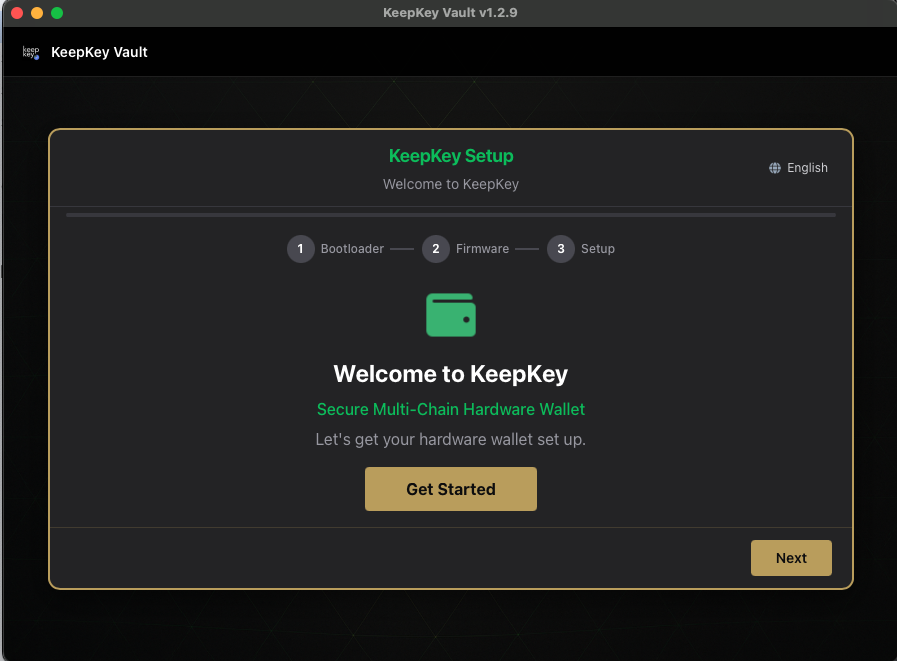
The first screen explains what’s about to happen.

Welcome screen

2. Create or recover

Choose whether you’re setting up a new wallet or recovering an existing one. If this is a brand new device, pick Create.

Create or recover choice

3. Seed phrase — the most important step

If creating a new wallet, the device generates a random seed and shows it to you one word at a time on the device screen — never on your computer. You’ll be asked to write it down.

Seed phrase introduction Write down the seed phrase

Use paper. Do not type the seed into a computer, phone, or password manager. Do not photograph it. Do not screenshot it. Anyone with these words controls your funds forever. See Recovery Phrase for more on why this is the single most important thing you’ll do.

After writing the words down, the device will ask you to verify a few of them, to confirm you really wrote them down correctly.

Verify recovery phrase

4. Set a PIN

Next, the device asks you to set a PIN. The PIN protects the device from unauthorized physical use.

The desktop application shows a scrambled number grid — you enter your PIN by clicking grid positions that match what’s shown on the device. Next time you enter your PIN, the device will shuffle the digits to a completely different layout.

PIN introduction Create a PIN

Because the desktop app only ever sees positions, not digits, anyone watching your screen — whether over your shoulder, via a screen recording, or through malware — learns nothing useful. The positions don’t map to the same digits next time. You’ll be asked to enter the PIN twice to confirm it.

Confirm the PIN

Pick a PIN you’ll remember — if you forget it, the device wipes itself after too many wrong attempts and you’ll need to recover from your seed phrase. Don’t use 1234 or your birthday. See PIN for more.

5. Done

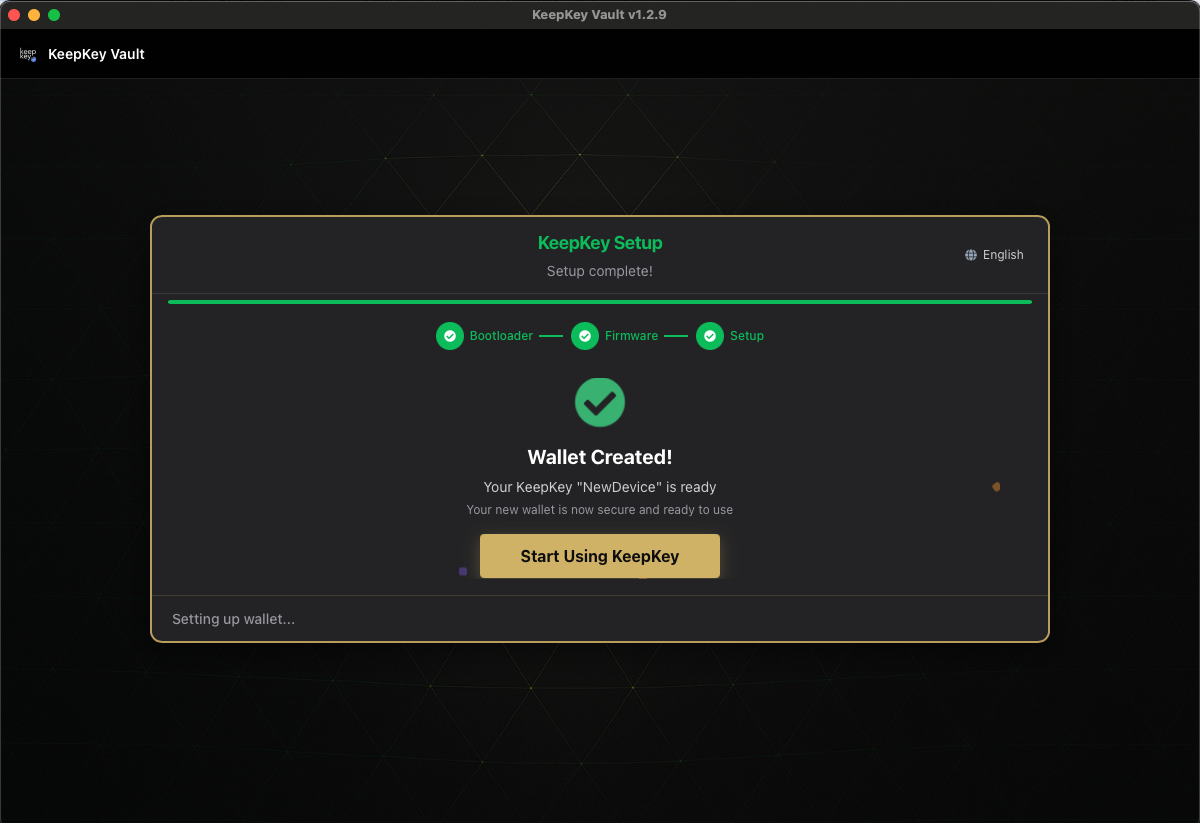
Once the PIN is set, the device is initialized. The desktop application confirms the wallet was created and drops you into the portfolio view.

Wallet created confirmation Setup complete

Recovering an existing wallet

If you chose Recover on step 2, the flow is a little different. The device presents a scrambled cipher alphabet on its own screen, and you enter each word of your recovery phrase by selecting positions — not by typing the actual letters.

Recovery introduction Cipher recovery input

How the cipher input works

  1. The device shows an alphabet scrambled into a random layout. Something like:
    Q W F P G J L U Y A R S T D H N E I O Z X C V B K M
  2. The desktop application shows a blank grid in the same layout — no letters visible.
  3. For each letter of the current word, you click the position that matches the letter on the device screen. To enter “F”, you look at the device, find F in its shuffled position, and click that position in the desktop grid.
  4. Each word is autocompleted by the device as you type positions — you’ll see the correct word fill in on the device once enough letters are entered.
  5. For the next word, the alphabet shuffles to a different random layout. The same position never means the same letter twice.

Why it works this way

The standard way to recover a wallet — typing 12 or 24 words into a text box — is extremely dangerous:

  • Keyloggers running on your computer would capture every word.
  • Screen recorders (legitimate ones or malware) would save the text.
  • Clipboard history and autocomplete can both leak the phrase.

Scrambled cipher entry defeats all of these. The desktop application never sees the letters themselves — only positions. The positions don’t map to the same letters twice, so even a full recording of your input reveals nothing.

Look at the device screen, not the computer. The device is the source of truth. The desktop grid is just a click surface.

Recovering wallet

What’s next

Last updated on