Install
The KeepKey desktop application is distributed as a signed installer for macOS, Windows, and Linux. Download it from:
Release notes and checksums for each version are on GitHub .
Platform downloads
| Platform | File | Notes |
|---|---|---|
| macOS (Apple Silicon) | KeepKey-Vault-*-arm64.dmg | M1/M2/M3/M4 Macs |
| macOS (Intel) | KeepKey-Vault-*-x64.dmg | Intel Macs |
| Windows | KeepKey-Vault-*-win-x64-setup.exe | Windows 10 and later |
| Linux | KeepKey-Vault-*.AppImage | Most modern distributions |
System requirements
- Windows: Windows 10 or later, 64-bit.
- macOS: macOS 13 (Ventura) or later. Use the
arm64download on Apple Silicon (M-series) Macs and thex64download on Intel Macs. - Linux: 64-bit (x86_64) with glibc 2.35 or newer, for example Ubuntu 22.04, Debian 12 or Linux Mint 21. Check yours with
ldd --version.
The installers and the app may still show the older name “KeepKey Vault”. It’s the same app. Coming back after years away? See Coming back to an old KeepKey.
First launch
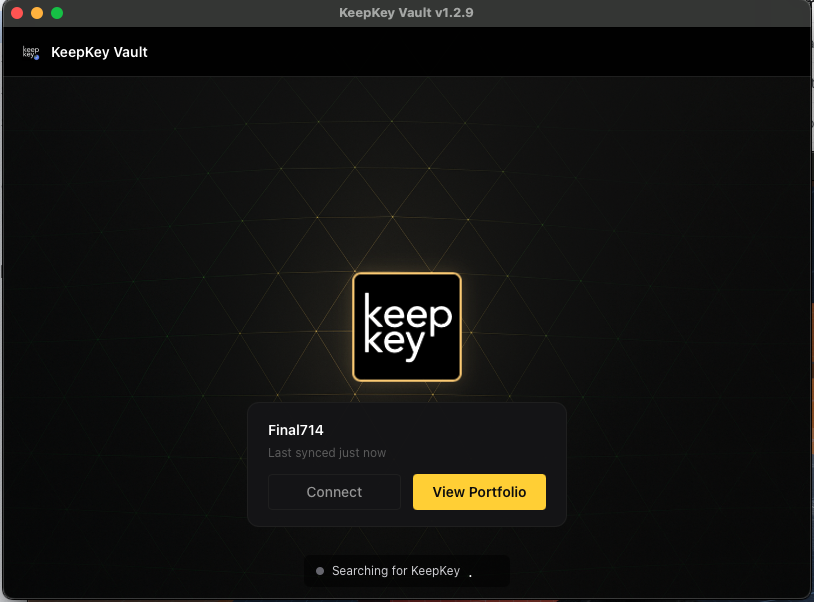
After installing, launch the application. On first run, you’ll see the splash screen while the app starts and checks for a connected device.
Plug in your KeepKey
Connect your KeepKey hardware device using the USB cable that came with it. The device powers on automatically. If the device has already been set up with a PIN, the desktop application will prompt you to enter it. Otherwise, it will walk you through the setup wizard.
Linux notes
On Linux, USB access to HID devices requires udev rules and plugdev group membership. If the desktop application can’t detect your KeepKey, the quick fix is:
sudo curl -fsSL https://raw.githubusercontent.com/keepkey/udev-rules/master/51-usb-keepkey.rules \
  -o /etc/udev/rules.d/51-usb-keepkey.rules
sudo udevadm control --reload-rules
sudo udevadm trigger
sudo usermod -a -G plugdev $USER
Then log out, log back in, unplug the device, and plug it back in.
For the full explanation — what the rules mean, distribution-specific notes, and troubleshooting — see Linux Tips.
macOS notes
On macOS, the first time you launch, the system will verify the signature. This can take a few seconds. Releases are signed and notarized by Apple, so macOS should open the app normally. If macOS warns you, don’t override it — make sure you downloaded the installer from keepkey.com/desktop .
Windows notes
KeepKey releases for Windows are Authenticode-signed. If Windows warns you about the installer, make sure you downloaded it from keepkey.com/desktop .
Next
- Set Up Your KeepKey — set up a new device or recover an existing one
- Linux Tips — full udev / permissions guide for Linux users