Skip to Content

App Connections Are Off

“Third-party apps and dApps connect via the REST API. It’s disabled by default for your protection. Only enable it in Settings when you need it.”

— card 2 of 3, shown after setup
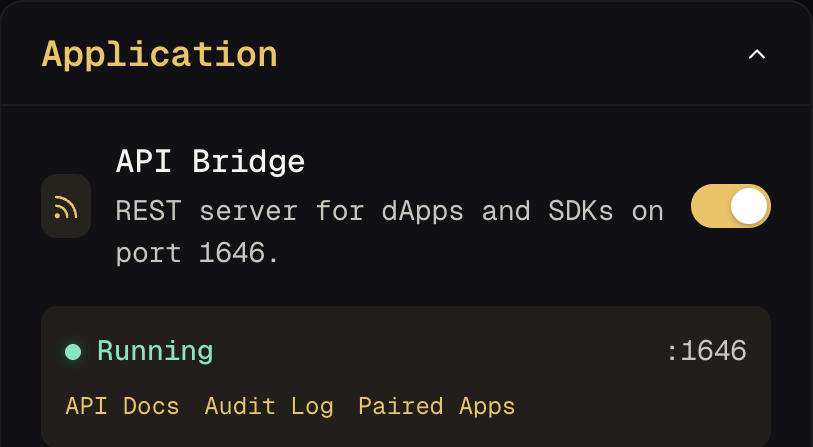
API servers settings

What this screen is telling you

The desktop application can run a local REST server on http://localhost:1646. That server is how external software — dApps in your browser, the Pioneer SDK, wallet integrations, your own scripts — asks your KeepKey for addresses, balances, and signatures.

It ships off. You have to turn it on deliberately. Nothing breaks with it off: sending, receiving, swapping, and portfolio all work entirely inside the desktop app.

Why it’s off by default

Enabling the API bridge changes your threat model. With it off, the only software that can talk to your device is the desktop application in front of you. With it on, the attack surface becomes anything running on your computer that can reach localhost:1646 — including a malicious npm package, a browser extension, or a background process you forgot you installed.

Every request still requires physical confirmation on the device before anything is signed. The bridge cannot silently move funds. But it can:

  • enumerate your addresses and balances (a privacy leak, and useful reconnaissance for a targeted attack)
  • spam you with signing requests, hoping you approve one without reading it — which puts you right back on Trust Your Device Screen

Off by default means you opt in to that surface, rather than inheriting it.

When to turn it on

  • You want to use a dApp or web wallet that connects to KeepKey
  • You’re developing against the REST API or the SDK
  • You use a portfolio or tax tool that reads from your device

Turn it on in Settings → API servers. Turn it back off when you’re done — it’s a toggle, not a one-way door.

Pairing

When an app first connects, you approve the pairing explicitly and it receives a bearer token scoped to that app. Paired apps are listed in Settings, and you can revoke any of them at any time. Approving a pairing is not permanent and not blanket.

Security settings

Rules once it’s on

  • Only pair apps you sought out yourself. An unexpected pairing prompt means something on your machine wants access you didn’t ask it to have — deny it.
  • Read every device confirmation. The bridge’s whole safety story rests on you actually reading the screen.
  • Revoke what you no longer use.
  • Turn the bridge off during periods you aren’t using integrations.
Last updated on