Name Your Device
“Wallet Created!” (or “Wallet Recovered!”) — Give your KeepKey a friendly name to identify it easily.
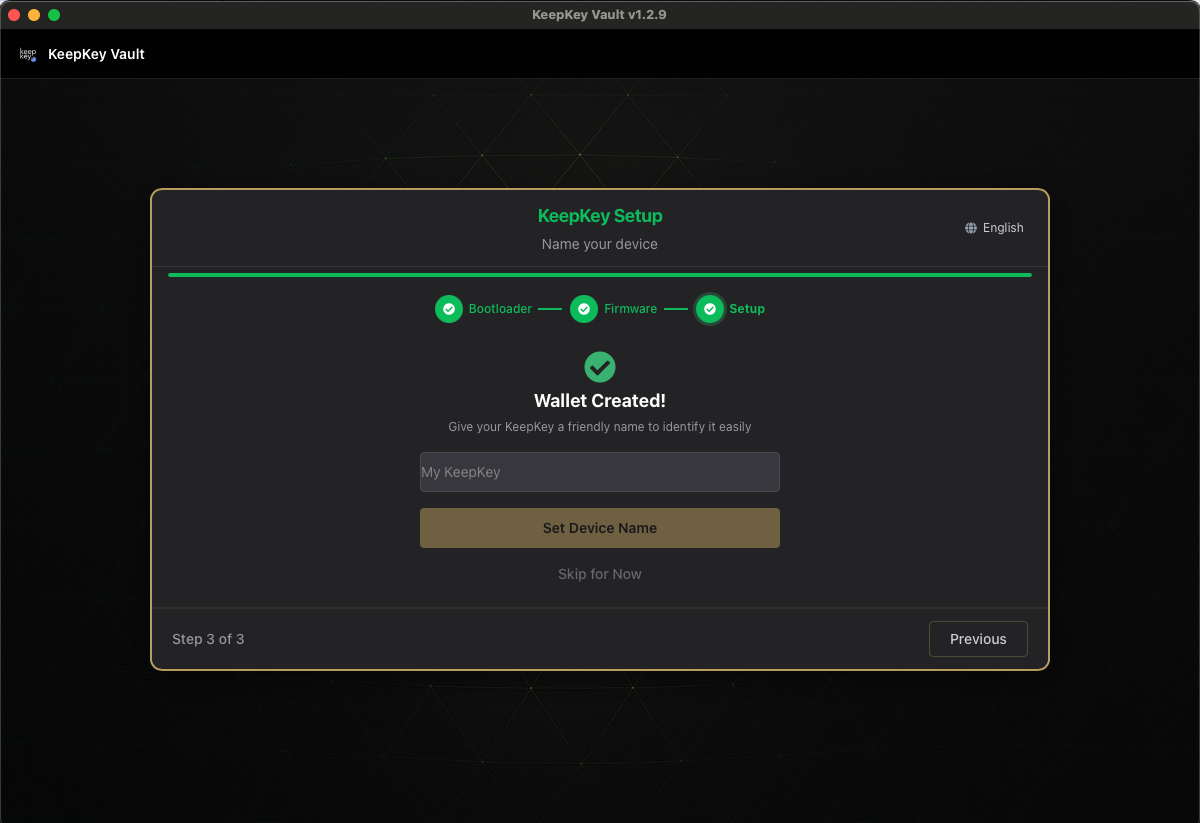
Your wallet now exists on the device. This step is optional.
The label is stored on the KeepKey and shown wherever the device is identified, including the device list, connection prompts and the device’s home screen. It helps when you own more than one KeepKey. Setting it needs a button press on the device: changes to the device are approved on the device. If you decline or Skip for Now, setup continues.
The label is public. It isn’t protected by your PIN, so anyone who powers the device on can read it. Daily or Backup #2 is fine; 20 BTC or your full name is not. You can change it later in Settings.
What happens next
- Created a wallet: Verify Your Recovery Phrase.
- Recovered a wallet: there is no backup check, because entering the words already proved them. You go straight to the tips cards.
Last updated on