Browser tasks and profiles
Give an agent a specific task, the browser it should use and a way to check the result. BEX lets the agent observe the page and the wallet request together. Browser actions can change websites; KeepKey’s physical confirmation applies to signing, not to every click or form submission.
Start with Agent Mode setup. You need KeepKey Desktop running, BEX paired, Enable MCP switched on inside BEX Settings, and an authenticated local MCP client. The examples use Codex; the same task instructions work with another connected MCP agent, including Claude Code.
Your first browser task
Watch: Your first browser task.
Begin with reading a page rather than changing an account. Open a documentation page in your intended Chrome profile, then ask:
List the connected KeepKey browsers. Find the profile with the KeepKey
documentation open. Report its browser identifier, the tab identifier and
the full page URL. Read the page and summarize three useful points with
their source URL. Do not submit forms or request a signature.
The agent should discover connected browsers, inspect their tabs and identify the intended page before reading it. Confirm that the reported URL and visible browser match your choice. A summary without a source or from the wrong profile is not a successful result.
If no browser is connected, follow Troubleshooting. A saved MCP server entry proves configuration was saved; it does not prove that BEX is connected or that the right profile was selected.
Choose the right profile
Watch: Work in the right profile.
Chrome profiles can have different accounts, sessions and extension settings. Two windows in one profile do not create two independent wallet environments.
- Ask the agent to call
bex_browsers. Each connected BEX profile has a browser identifier. - For each candidate, inspect tabs with
bex_tabs, passing that identifier asbrowser. Identify the profile by the page you deliberately opened, not by connection order. - Choose the intended tab. Pass both
browserandtabIdon subsequent page operations. Usebrowseron wallet-state queries too, so the page and request queue come from the same profile. - Before acting, compare the URL, expected signed-in account and selected network. Stop if any differ from your intent.
For example, this is the argument shape for listing tabs; the identifier is illustrative:
{ "browser": "b1-example", "action": "list" }With multiple connected profiles, omitting browser produces browser_ambiguous. An old or nonexistent identifier produces unknown_browser. Rediscover browsers after an extension reconnect or Desktop restart; do not keep retrying a stale identifier. If bex_browsers is absent, inspect your live tool catalog and update the apps before relying on multi-profile routing.
The profile lesson uses separate Work practice and Personal practice pages. It opens a temporary documentation tab in the selected profile and verifies it is absent from the other. Use a harmless page to make this check yourself before a sensitive task.
Complete a browser workflow
Watch: Complete a browser workflow.
Use a practice form or a draft you can discard for your first write task. State the allowed changes and whether submission is authorized:
Use only the selected Work browser and practice tab. Inspect the form,
enter the values I provide, and summarize the changes before saving.
Do not touch another profile or request a wallet signature.
After I authorize Save, save once and verify the persisted values.
Stop and explain any unexpected navigation, validation error or request.
The working loop is observe → act → verify:
- Read the page and take a
bex_snapshotto obtain current element refs. - Find the intended control and act using its ref, with a human-readable
elementdescription. Usebex_typefor fields andbex_selectfor options. - Take a new snapshot after a page change. Refs are refreshed by snapshots; do not reuse an old ref or guess a coordinate from a screenshot.
- Inspect validation messages and summarize what remains unsaved. Correct the field that failed rather than repeating the entire task.
- After the authorized save, read the result. Where appropriate, reopen the saved view and compare persisted values with the requested values. Typing text or clicking Save alone does not establish persistence.
Keep the result report concrete: selected browser, page URL, changed fields, verification performed and anything unresolved. Avoid copying unrelated account data into the report. For live crypto work, continue with the DeFi analysis and reporting workflow.
Review a wallet request
Watch: Understand a wallet request.
When the site asks for a signature or transaction, pause the browser workflow and inspect bex_pending_requests for the selected browser. Match the origin, chain, method and parameters with what you intended. Queue entries have a key; use that key to identify the request, since the site’s own request id can collide across tabs.
Ask the agent to explain the request in plain language, including recipient or spender, asset, amount, allowance and consequences where those fields apply. Distinguish an on-chain transaction, token approval, typed-data signature and personal message. If the data cannot be decoded meaningfully, record that limit and stop rather than inventing a reassuring description.
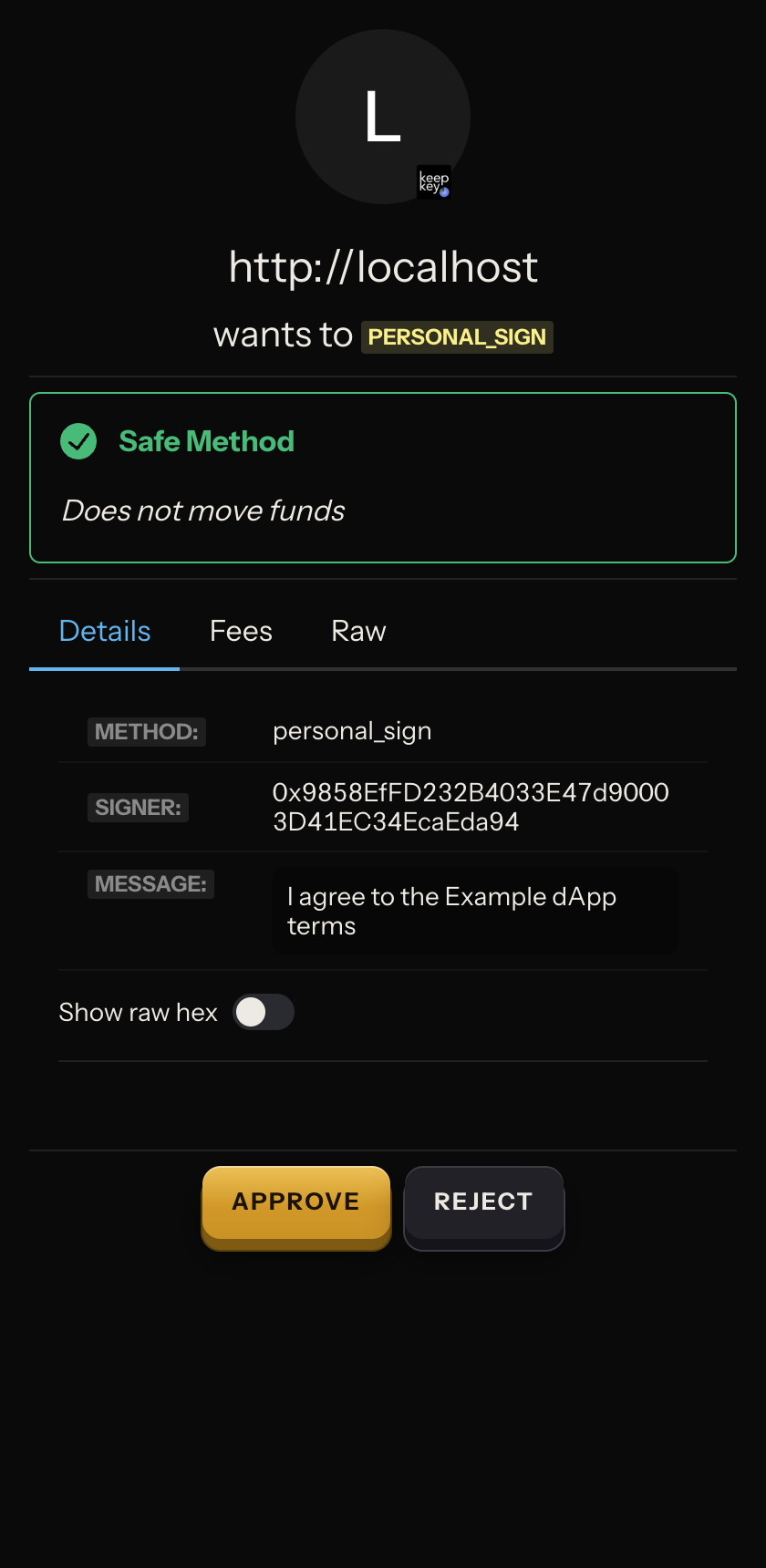
The recorded example requests personal_sign for “I agree to the Example dApp terms.” It is rejected, then the queue is checked again. No transaction is submitted and there is no transaction hash. An empty queue alone cannot distinguish success from rejection; inspect the corresponding result or error as well.
For a real signing request, read the device review checklist. Approving a screen in the browser is not the physical KeepKey confirmation. Cancel when the request differs from your intent, and verify the cancellation in the request result before starting again.
Finish and disconnect
Watch: Troubleshoot and disconnect.
Finish with a verified result or an explicit unresolved state. Close only the temporary tabs you created. Then use Disconnect and verify to switch off BEX Agent Mode and check the bridge state.
Turning off MCP, disconnecting a site and revoking an app pairing affect different permissions. None reverses a completed transaction or revokes an on-chain token allowance.