# Welcome to KeepKey

KeepKey is a hardware wallet — a small physical device that holds the private keys to your cryptocurrency. Your keys are generated on the device and never leave it. Every transaction is reviewed and approved by pressing a button on the device itself, so even if your computer is compromised, your funds can't be moved without you physically confirming it.

If you just unboxed a KeepKey, start here. **Brand new to crypto?** Read [Crypto Basics](/docs/learn) first — it explains wallets, keys, and recovery phrases in plain language. If you're building an app that talks to a KeepKey, [jump to the developer section](#for-developers) at the bottom.

## New here? Start with the basics

Three things every KeepKey owner should understand before doing anything else:

<div style={{ display: 'grid', gridTemplateColumns: 'repeat(auto-fit, minmax(260px, 1fr))', gap: '16px', margin: '24px 0' }}>

<a href="/docs/desktop/recovery-phrase" style={{ display: 'block', padding: '20px', borderRadius: '12px', border: '1px solid rgba(255,255,255,0.1)', textDecoration: 'none' }}>
  <div style={{ fontSize: 18, fontWeight: 700, marginBottom: 6 }}>1 · Your Recovery Phrase</div>
  <div style={{ fontSize: 13, opacity: 0.75 }}>12 or 24 words the device shows you during setup. Whoever has these words owns the wallet — forever. Write them on paper and store them somewhere safe. Never type them into a computer.</div>
</a>

<a href="/docs/desktop/pin" style={{ display: 'block', padding: '20px', borderRadius: '12px', border: '1px solid rgba(255,255,255,0.1)', textDecoration: 'none' }}>
  <div style={{ fontSize: 18, fontWeight: 700, marginBottom: 6 }}>2 · Your PIN</div>
  <div style={{ fontSize: 13, opacity: 0.75 }}>Protects the physical device. The number grid shuffles every time you enter it, so screen-watchers and screen recorders learn nothing useful. Pick something you'll remember.</div>
</a>

<a href="/docs/desktop/verify-on-device" style={{ display: 'block', padding: '20px', borderRadius: '12px', border: '1px solid rgba(255,255,255,0.1)', textDecoration: 'none' }}>
  <div style={{ fontSize: 18, fontWeight: 700, marginBottom: 6 }}>3 · Verify on the Device</div>
  <div style={{ fontSize: 13, opacity: 0.75 }}>Your computer can be compromised — your device screen cannot. Always read the address and amount on the KeepKey before approving a transaction. Every character, not just the ends.</div>
</a>

</div>

## Get started in 5 minutes

1. **Download the desktop application** for macOS, Windows, or Linux from [github.com/keepkey/keepkey-vault/releases/latest](https://github.com/keepkey/keepkey-vault/releases/latest).
2. **Plug your KeepKey in** with the USB cable and launch the application.
3. **Follow the onboarding flow.** The app walks you through creating a new wallet (or recovering an existing one), writing down your recovery phrase, and setting a PIN.
4. **Write your recovery phrase on paper.** Not in a password manager, not as a photo, not typed into a computer. Paper. In a safe place.
5. **Receive a small test amount first.** Before sending anything meaningful to your new wallet, try a small deposit and confirm it arrives — verify the receive address on the device screen before you share it.

[Full onboarding guide →](/docs/desktop/onboarding)

## The KeepKey apps

KeepKey ships three official apps. You can use any combination of them — they all talk to the same hardware device.

<div style={{ display: 'grid', gridTemplateColumns: 'repeat(auto-fit, minmax(240px, 1fr))', gap: '16px', margin: '24px 0' }}>

<a href="/docs/desktop" style={{ display: 'block', padding: '20px', borderRadius: '12px', border: '1px solid rgba(255,255,255,0.1)', textDecoration: 'none' }}>
  <img src="/img/promo/desktop.png" alt="Desktop" style={{ width: '100%', borderRadius: '8px', marginBottom: '12px' }} />
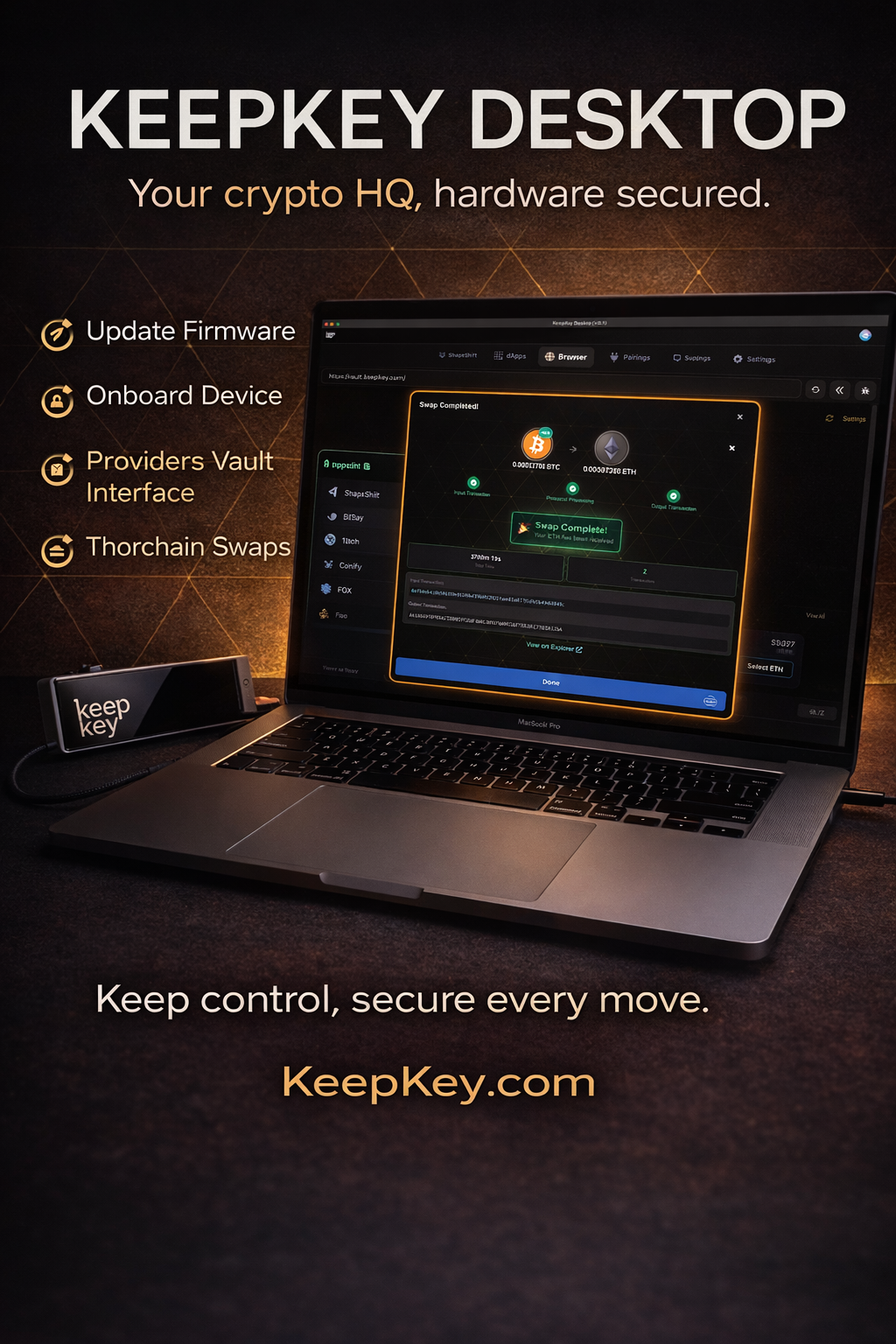
  <strong>Desktop Application</strong>
  <div style={{ fontSize: '13px', opacity: 0.75, marginTop: '4px' }}>The main way to use your KeepKey. Portfolio, swap, send/receive, firmware updates. macOS, Windows, Linux.</div>
</a>

<a href="/docs/bex" style={{ display: 'block', padding: '20px', borderRadius: '12px', border: '1px solid rgba(255,255,255,0.1)', textDecoration: 'none' }}>
  <img src="/img/promo/bex.png" alt="Browser Extension" style={{ width: '100%', borderRadius: '8px', marginBottom: '12px' }} />
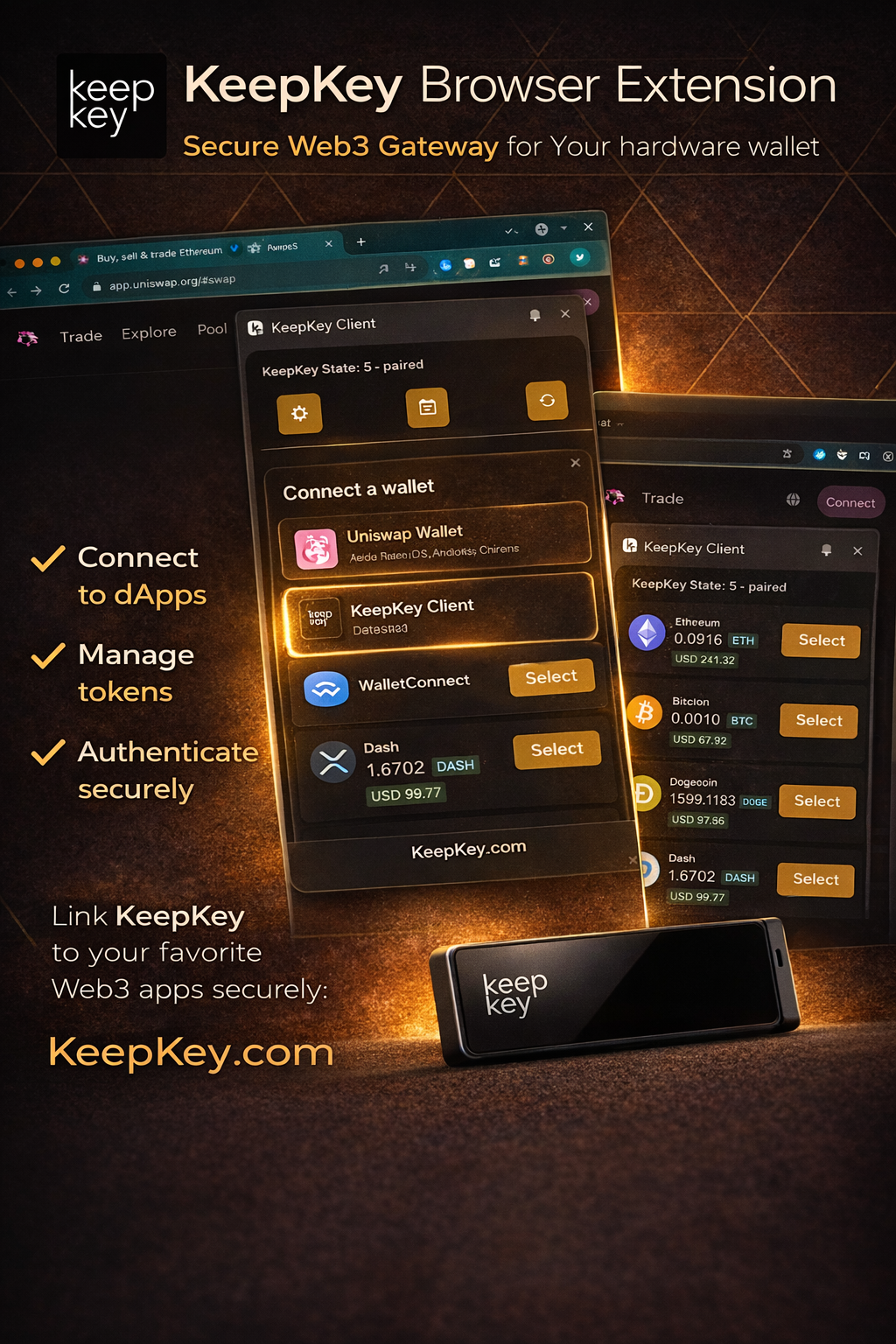
  <strong>Browser Extension</strong>
  <div style={{ fontSize: '13px', opacity: 0.75, marginTop: '4px' }}>Connect your KeepKey to any EVM dapp — Uniswap, OpenSea, Curve, and thousands more. Works like MetaMask, backed by hardware.</div>
</a>

<a href="/docs/mobile" style={{ display: 'block', padding: '20px', borderRadius: '12px', border: '1px solid rgba(255,255,255,0.1)', textDecoration: 'none' }}>
  <img src="/img/promo/mobile.png" alt="Mobile" style={{ width: '100%', borderRadius: '8px', marginBottom: '12px' }} />
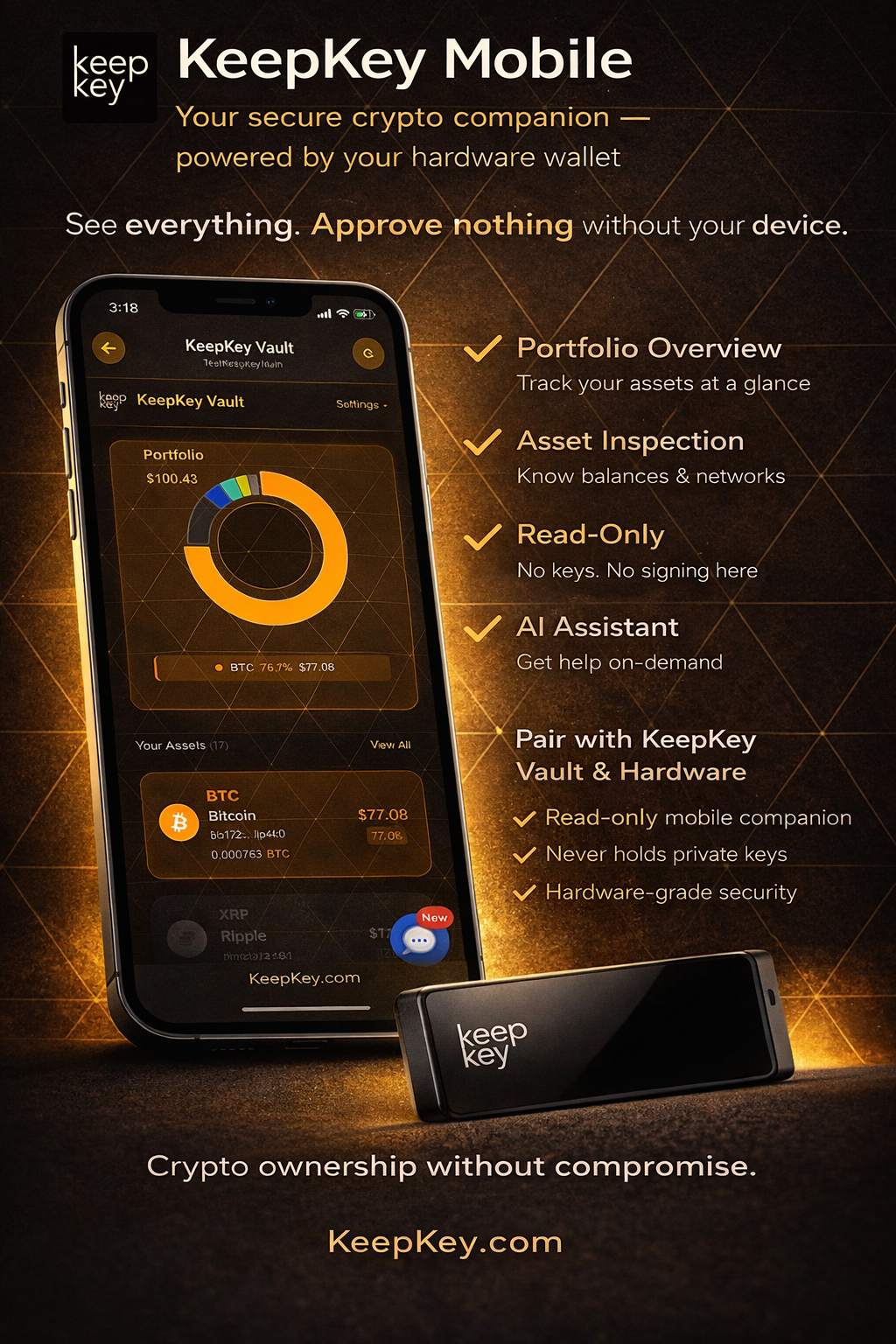
  <strong>Mobile App</strong>
  <div style={{ fontSize: '13px', opacity: 0.75, marginTop: '4px' }}>View your portfolio and receive funds on the go. Pairs with the desktop app via QR code. iOS and Android.</div>
</a>

</div>

## Common questions

- **I lost my KeepKey. Are my funds gone?** No. Your funds live on the blockchain, not the device. As long as you still have your recovery phrase, buy another KeepKey (or any BIP39-compatible wallet) and recover the wallet with those words.
- **I forgot my PIN.** Too many wrong PIN attempts wipes the device. Recover it from your recovery phrase on the same device or a new one.
- **Someone might have seen my recovery phrase.** Move your funds to a new wallet on a new device *immediately*. Recovery phrases can't be rotated — once exposed, the wallet is no longer safe.
- **Do I need to trust KeepKey the company?** No. The firmware is open source, cryptographically signed, and runs only on the device. KeepKey (the company) has no way to move your funds.

## Support

- **Download the desktop application:** [github.com/keepkey/keepkey-vault/releases/latest](https://github.com/keepkey/keepkey-vault/releases/latest)
- **Issues:** [github.com/keepkey/keepkey-vault/issues](https://github.com/keepkey/keepkey-vault/issues)
- **Support:** [support.keepkey.com](https://support.keepkey.com)

---

## For developers

Building an app that talks to KeepKey? The desktop application exposes a local REST API on `http://localhost:1646` when it's running. Any app — web, native, CLI, or bot — can pair with it and request signatures from the hardware device.

```bash
npm install keepkey-vault-sdk
```

- **[Quickstart](/docs/quickstart)** — install the SDK, pair, make your first call
- **[Authentication](/docs/authentication)** — how pairing and bearer tokens work
- **[SDK reference](/docs/reference/api)** — typed API, auto-generated from source
- **[REST reference](/docs/reference/rest)** — full OpenAPI spec, interactive