# Verifying Transactions
import StepVideo from '@/components/StepVideo'
# Verifying Transactions
**Always confirm the address and amount on your KeepKey before approving.** Use the device screen to verify the request independently of the computer. This matters most for large transactions, but the habit is worth building from day one.
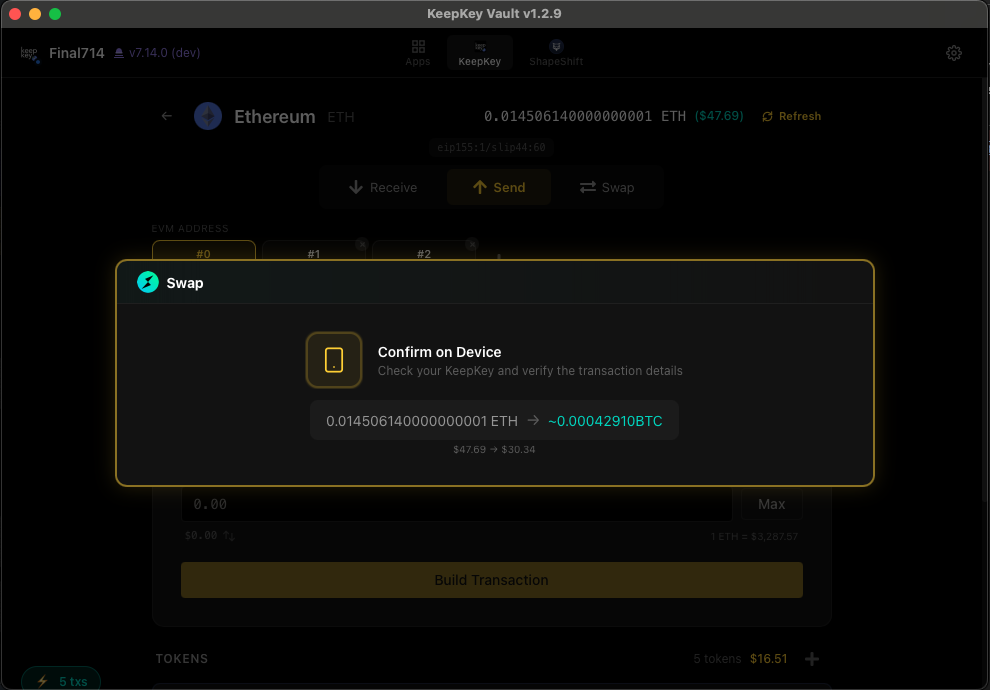 ## Why the device screen is the source of truth
The device provides a separate review surface for supported signing flows. Compare it with the action you intended, not merely with another copy shown by the same computer.
Firmware, decoding coverage and the source of metadata still matter. Read [Signing and Approvals](/docs/learn/clear-signing) for the distinction between native interpretation, provider context, KeepKey-approved authority and raw review.
## What to check on the device
Every time you approve a transaction, pause and read the device screen:
### For sends and swaps
- **The recipient address — every character.** Compare the address on the device to the address you *expected* to send to (not the one on your computer). Check the entire string, character by character. Do **not** just glance at the first and last few characters: Attackers can generate look-alike addresses. A matching prefix or suffix is not proof that the whole address matches.
- **The amount.** Does it match what you intended to send? Watch the decimal places — it's easy to send 10× what you meant.
- **The network fee.** Is it reasonable for this network?
- **The asset and network.** Is this the token you expect, on the network you expect? Sending ETH on Polygon is not the same as sending ETH on mainnet.
### For token approvals (EVM)
- **The token contract.** Is it the token you actually use?
- **The spender address.** Is this a contract you trust?
- **The allowance.** Is it "unlimited" (high risk) or a specific amount (safer)?
### For EIP-712 typed data
Structured display availability is version-specific. If your device only shows a hash, it has not presented the full document for your review. See [release status](/docs/firmware/release-status).
- **The domain.** Is this coming from the dapp you think it's coming from? A malicious site can craft messages that *look* like they're from Uniswap but actually authorize something else.
- **The fields.** Read what you're actually signing. If it doesn't make sense, cancel.
### When receiving
Check the receive address on the KeepKey screen before you give it out. Otherwise malware could show you an attacker's address to pass on to whoever is paying you.
## How to read a full address
Addresses are long on purpose, and lookalike attacks count on you skimming. A method that works:
1. **Get the address from its source** — the exchange's deposit page, the receiver's own device screen, or your [Address Book](/docs/desktop/address-book). Not your transaction history.
2. **Compare in groups of four characters**, left to right: `bc1q cr8t e4kr 609g …`. Keep your place with a finger or cursor on the source.
3. **Don't skip the middle.** The first and last characters are exactly what lookalike addresses are generated to match.
4. **Over the phone, read it aloud** in the same groups — the person holding the source reads, the other follows the recipient field. See [Get paid by friends & family](/docs/guides/friends-and-family).
5. **Any mismatch, stop.** Reject on the device. Nothing is sent until you press the button.
## The golden rule
If you can't explain what you're signing *in your own words* based on what the device shows, **don't approve it**. Cancel, figure out what's going on, and try again once you understand.
## Related
- [Real-world guides](/docs/guides) — clipboard swapping, address poisoning, exchanges, family payments
- [Send & Receive](/docs/desktop/send-receive) — how send/receive flows work
- [Swap](/docs/desktop/swap) — cross-chain swap flow
## Why the device screen is the source of truth
The device provides a separate review surface for supported signing flows. Compare it with the action you intended, not merely with another copy shown by the same computer.
Firmware, decoding coverage and the source of metadata still matter. Read [Signing and Approvals](/docs/learn/clear-signing) for the distinction between native interpretation, provider context, KeepKey-approved authority and raw review.
## What to check on the device
Every time you approve a transaction, pause and read the device screen:
### For sends and swaps
- **The recipient address — every character.** Compare the address on the device to the address you *expected* to send to (not the one on your computer). Check the entire string, character by character. Do **not** just glance at the first and last few characters: Attackers can generate look-alike addresses. A matching prefix or suffix is not proof that the whole address matches.
- **The amount.** Does it match what you intended to send? Watch the decimal places — it's easy to send 10× what you meant.
- **The network fee.** Is it reasonable for this network?
- **The asset and network.** Is this the token you expect, on the network you expect? Sending ETH on Polygon is not the same as sending ETH on mainnet.
### For token approvals (EVM)
- **The token contract.** Is it the token you actually use?
- **The spender address.** Is this a contract you trust?
- **The allowance.** Is it "unlimited" (high risk) or a specific amount (safer)?
### For EIP-712 typed data
Structured display availability is version-specific. If your device only shows a hash, it has not presented the full document for your review. See [release status](/docs/firmware/release-status).
- **The domain.** Is this coming from the dapp you think it's coming from? A malicious site can craft messages that *look* like they're from Uniswap but actually authorize something else.
- **The fields.** Read what you're actually signing. If it doesn't make sense, cancel.
### When receiving
Check the receive address on the KeepKey screen before you give it out. Otherwise malware could show you an attacker's address to pass on to whoever is paying you.
## How to read a full address
Addresses are long on purpose, and lookalike attacks count on you skimming. A method that works:
1. **Get the address from its source** — the exchange's deposit page, the receiver's own device screen, or your [Address Book](/docs/desktop/address-book). Not your transaction history.
2. **Compare in groups of four characters**, left to right: `bc1q cr8t e4kr 609g …`. Keep your place with a finger or cursor on the source.
3. **Don't skip the middle.** The first and last characters are exactly what lookalike addresses are generated to match.
4. **Over the phone, read it aloud** in the same groups — the person holding the source reads, the other follows the recipient field. See [Get paid by friends & family](/docs/guides/friends-and-family).
5. **Any mismatch, stop.** Reject on the device. Nothing is sent until you press the button.
## The golden rule
If you can't explain what you're signing *in your own words* based on what the device shows, **don't approve it**. Cancel, figure out what's going on, and try again once you understand.
## Related
- [Real-world guides](/docs/guides) — clipboard swapping, address poisoning, exchanges, family payments
- [Send & Receive](/docs/desktop/send-receive) — how send/receive flows work
- [Swap](/docs/desktop/swap) — cross-chain swap flow