# Creating Your Wallet
> *"Follow the prompts on your KeepKey device screen. Write down the seed words carefully — they are your backup."*
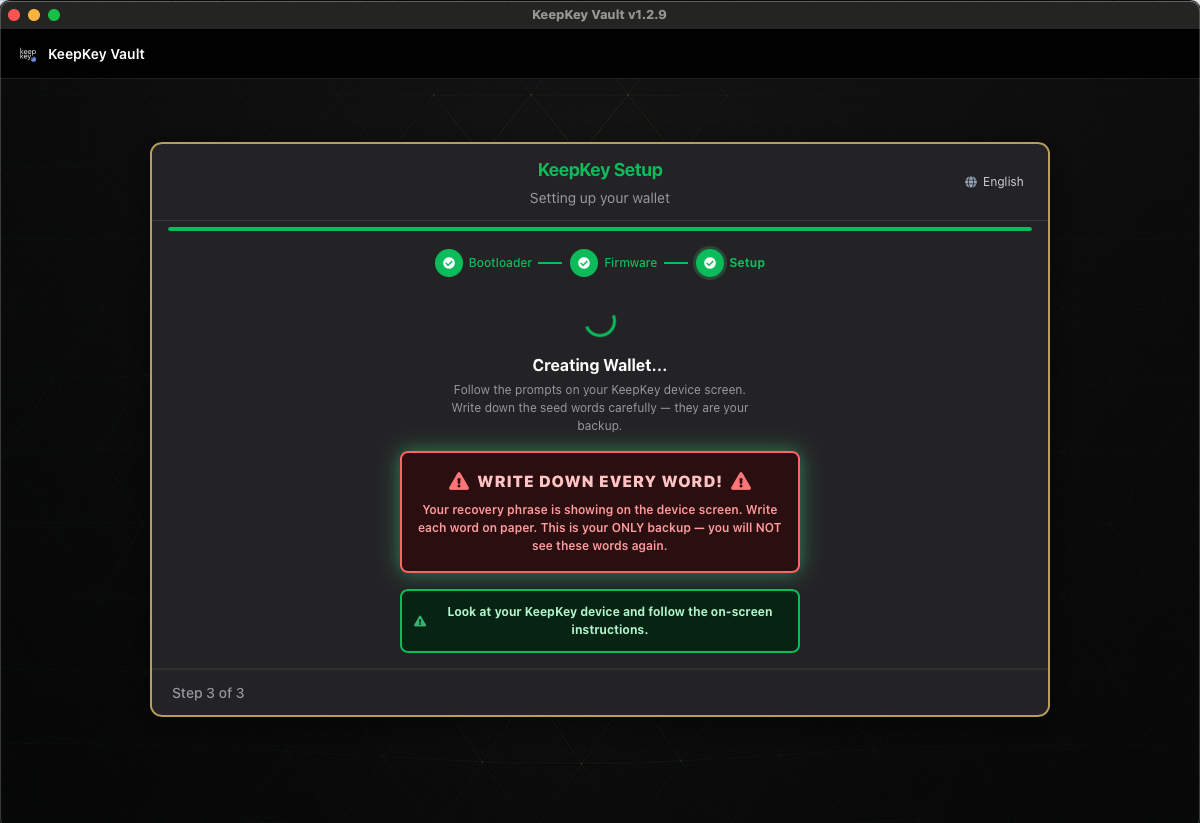 The desktop application is now a spectator. Everything real happens on the device screen, and the app is telling you to look at it.
## Write down every word
> *"Your recovery phrase is showing on the device screen. Write each word on paper. This is your ONLY backup — you will NOT see these words again."*
That warning is literal. The words are shown once, during this step, and the device will not display them again afterward. There is no "show my seed" feature — by design, because a device that can be asked to reveal its seed is a device that an attacker can ask too.
While the words are on screen:
- **Write them in order, numbered.** Order is part of the secret.
- **Check each word's spelling against the device** as you write it.
- **Do not photograph the screen.** Not "just until I write it down later."
- **Do not walk away** and leave the device displaying the phrase.
## If you're recovering instead
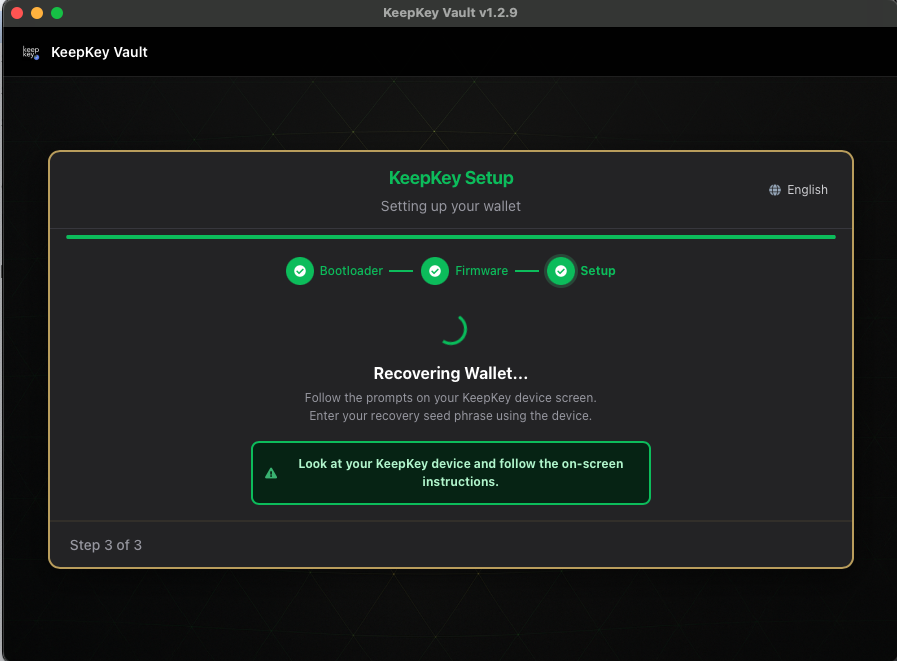
> *"Follow the prompts on your KeepKey device screen. Enter your recovery seed phrase using the device."*
You'll be entering words through the scrambled cipher grid. See [Scrambled Recovery Entry](/docs/desktop/setup/cipher-recovery) for how the grid works and what to do when a word won't take.
The desktop application is now a spectator. Everything real happens on the device screen, and the app is telling you to look at it.
## Write down every word
> *"Your recovery phrase is showing on the device screen. Write each word on paper. This is your ONLY backup — you will NOT see these words again."*
That warning is literal. The words are shown once, during this step, and the device will not display them again afterward. There is no "show my seed" feature — by design, because a device that can be asked to reveal its seed is a device that an attacker can ask too.
While the words are on screen:
- **Write them in order, numbered.** Order is part of the secret.
- **Check each word's spelling against the device** as you write it.
- **Do not photograph the screen.** Not "just until I write it down later."
- **Do not walk away** and leave the device displaying the phrase.
## If you're recovering instead
> *"Follow the prompts on your KeepKey device screen. Enter your recovery seed phrase using the device."*
You'll be entering words through the scrambled cipher grid. See [Scrambled Recovery Entry](/docs/desktop/setup/cipher-recovery) for how the grid works and what to do when a word won't take.
 ## You will also set a PIN here
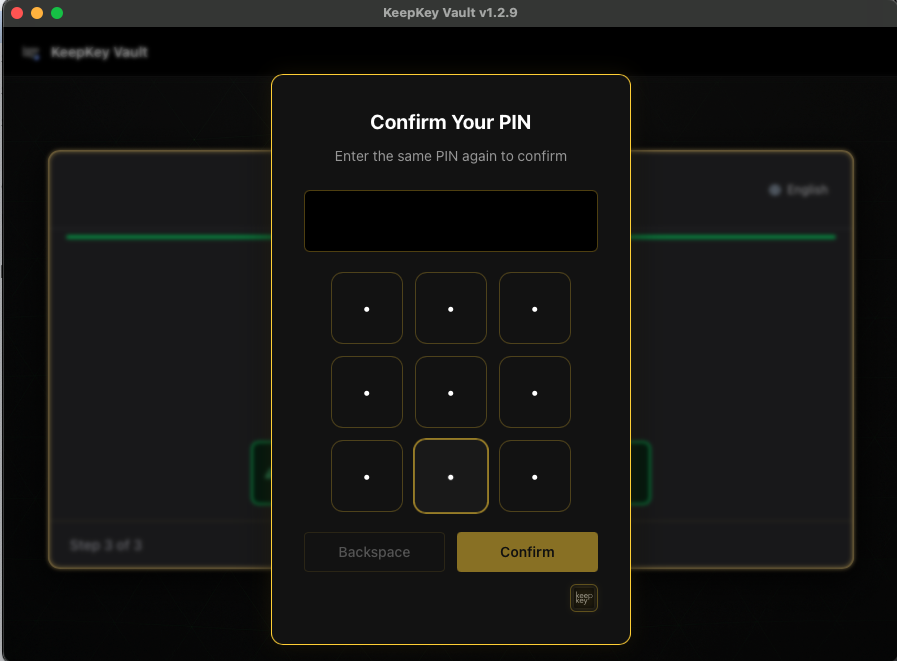
Partway through, the device asks for a PIN and then asks you to confirm it — entered through the scrambled 3×3 grid. See [Your PIN is Scrambled](/docs/desktop/setup/pin-scrambled) if the grid is confusing, and pick something you will actually remember.
## You will also set a PIN here
Partway through, the device asks for a PIN and then asks you to confirm it — entered through the scrambled 3×3 grid. See [Your PIN is Scrambled](/docs/desktop/setup/pin-scrambled) if the grid is confusing, and pick something you will actually remember.
 ## If something goes wrong
**"Device disconnected. Plug it back in to continue, or go back to try again."**
The USB connection dropped mid-flow. Plug the device back in — the wizard is watching for it and will pick up where it can. If it can't, use **Go Back** to return to the [setup choice](/docs/desktop/setup/create-or-recover) and start the flow over.
A cable that only powers, a loose port, or a USB hub is the usual cause. Try a different cable and a port directly on the machine.
**"Failed to create wallet" / "Failed to recover wallet"**
Return to the setup choice and retry. Nothing partial was written that a fresh attempt can't replace. If it fails repeatedly:
- Confirm the device is on current firmware — see [Firmware Updates](/docs/desktop/firmware)
- On Linux, check your udev rules — see [Linux Tips](/docs/desktop/linux-tips)
- Try a different cable and port before assuming a hardware fault
**Recovery specifically fails at the end:** the phrase was accepted word-by-word but the checksum didn't validate. That means a word is wrong or out of order. Recheck your written backup against the BIP39 wordlist and try again — the phrase itself is almost always the problem, not the device.
## Related
- [Name Your Device](/docs/desktop/setup/device-name) — the next screen
- [Verify Your Recovery Phrase](/docs/desktop/setup/verify-backup)
- [Your Words = Your Wallet](/docs/desktop/setup/recovery-words)
- [All setup screens](/docs/desktop/setup)
## If something goes wrong
**"Device disconnected. Plug it back in to continue, or go back to try again."**
The USB connection dropped mid-flow. Plug the device back in — the wizard is watching for it and will pick up where it can. If it can't, use **Go Back** to return to the [setup choice](/docs/desktop/setup/create-or-recover) and start the flow over.
A cable that only powers, a loose port, or a USB hub is the usual cause. Try a different cable and a port directly on the machine.
**"Failed to create wallet" / "Failed to recover wallet"**
Return to the setup choice and retry. Nothing partial was written that a fresh attempt can't replace. If it fails repeatedly:
- Confirm the device is on current firmware — see [Firmware Updates](/docs/desktop/firmware)
- On Linux, check your udev rules — see [Linux Tips](/docs/desktop/linux-tips)
- Try a different cable and port before assuming a hardware fault
**Recovery specifically fails at the end:** the phrase was accepted word-by-word but the checksum didn't validate. That means a word is wrong or out of order. Recheck your written backup against the BIP39 wordlist and try again — the phrase itself is almost always the problem, not the device.
## Related
- [Name Your Device](/docs/desktop/setup/device-name) — the next screen
- [Verify Your Recovery Phrase](/docs/desktop/setup/verify-backup)
- [Your Words = Your Wallet](/docs/desktop/setup/recovery-words)
- [All setup screens](/docs/desktop/setup)