# Settings
The Settings section controls everything about your device and the desktop application itself — PIN, passphrase, label, signing policies, firmware updates, and the local REST API.
## Application settings
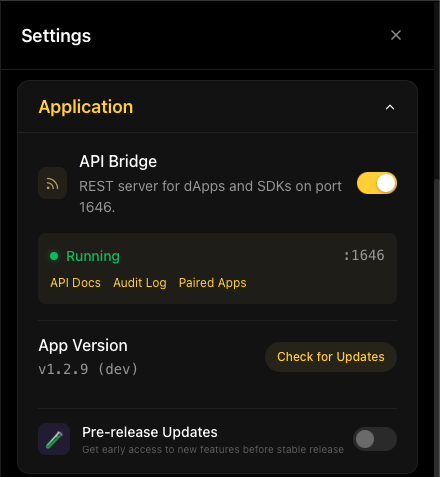 Application settings control the desktop application itself:
- **API Bridge** — toggles the local REST server on `http://localhost:1646` that lets dApps and SDKs connect to your device
- **App Version** — current version with a "Check for Updates" button
- **Always on Top** — keeps the KeepKey Desktop window in the foreground when a signing request arrives
- **Pre-release Updates** — opt in to beta builds before stable release
### Pair Mobile Device
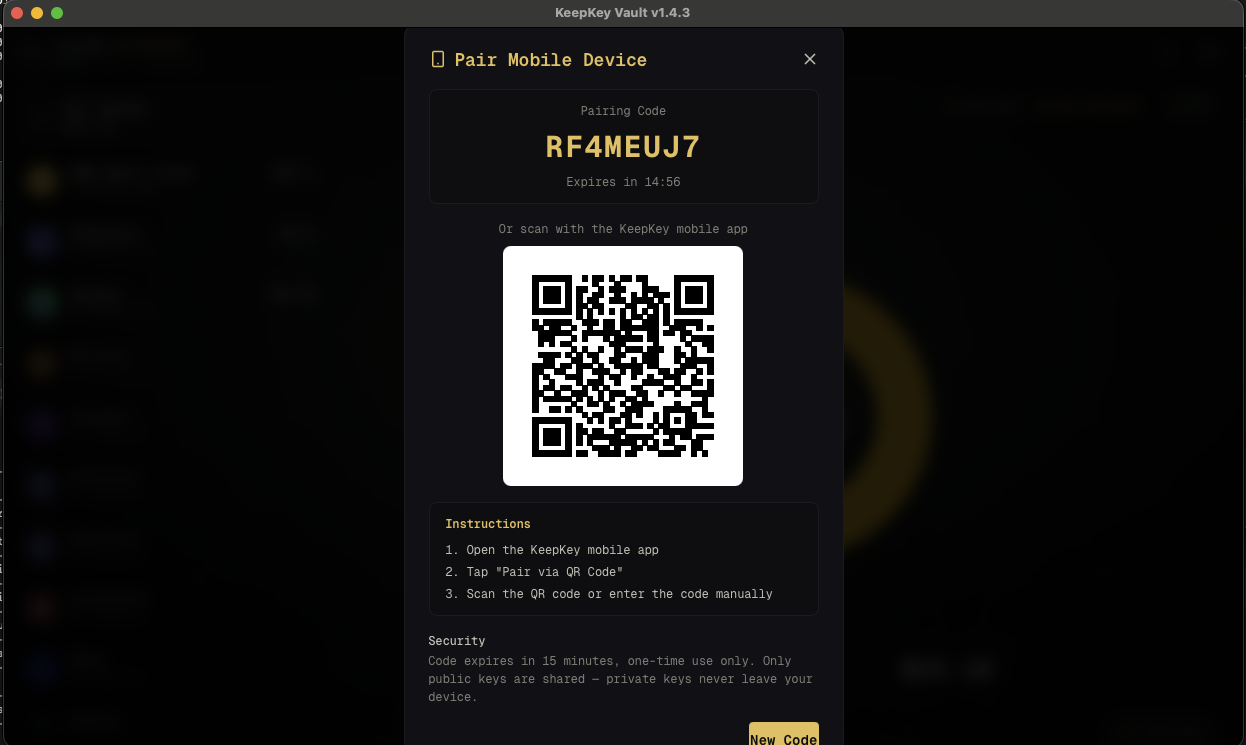
Click **Pair Mobile** to sync your public keys to the KeepKey mobile app. Private keys never leave the device — only public keys are shared, so the mobile app can show balances but cannot sign.
Application settings control the desktop application itself:
- **API Bridge** — toggles the local REST server on `http://localhost:1646` that lets dApps and SDKs connect to your device
- **App Version** — current version with a "Check for Updates" button
- **Always on Top** — keeps the KeepKey Desktop window in the foreground when a signing request arrives
- **Pre-release Updates** — opt in to beta builds before stable release
### Pair Mobile Device
Click **Pair Mobile** to sync your public keys to the KeepKey mobile app. Private keys never leave the device — only public keys are shared, so the mobile app can show balances but cannot sign.
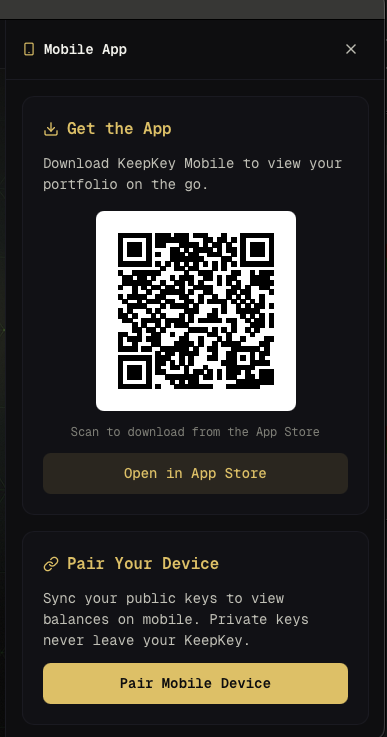 After your KeepKey derives the public keys, a one-time pairing code and QR code appear. Open the KeepKey mobile app, tap **Pair via QR Code**, and scan it. The code expires in 15 minutes and is single-use.
 ## Device overview
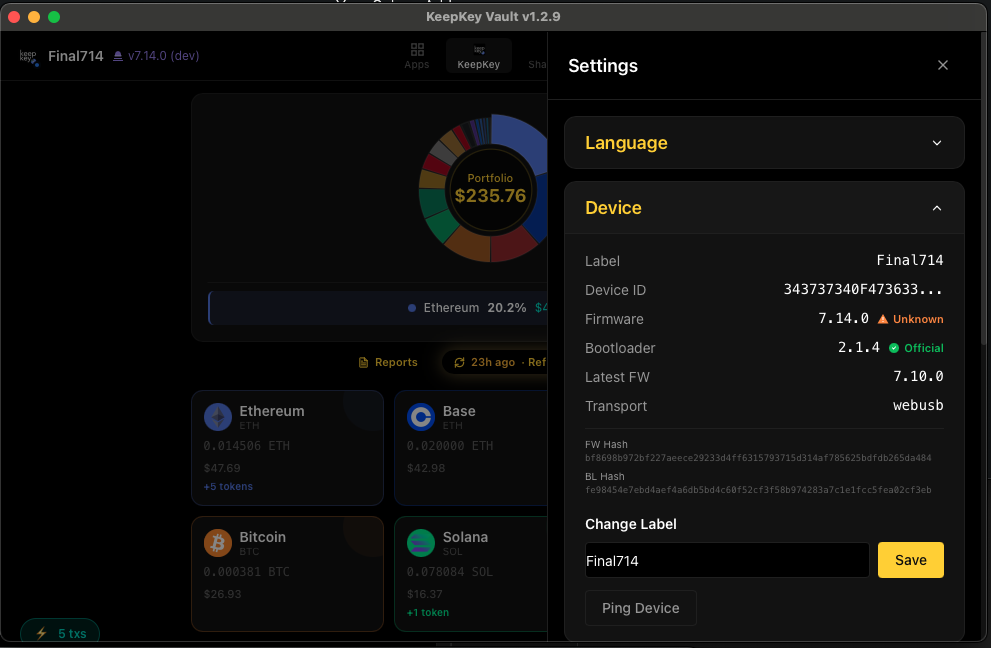 The device overview page shows:
- **Model** — your KeepKey model
- **Firmware version** — current firmware, with a button to [update](/docs/desktop/firmware) if a newer version is available
- **Label** — a name you can give your device (useful if you have more than one)
- **Features enabled** — which security features are on
## Security
The device overview page shows:
- **Model** — your KeepKey model
- **Firmware version** — current firmware, with a button to [update](/docs/desktop/firmware) if a newer version is available
- **Label** — a name you can give your device (useful if you have more than one)
- **Features enabled** — which security features are on
## Security
 ### PIN
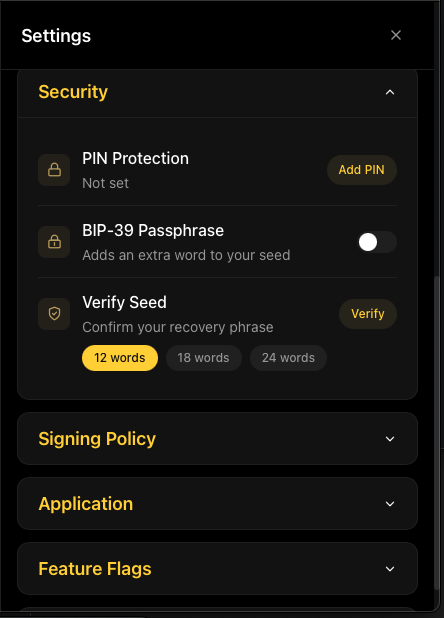
You can change the PIN here. The scrambled-grid entry still applies — see [PIN](/docs/desktop/pin) for how it works.
### Passphrase
You can enable or disable passphrase protection. Passphrases create separate [hidden wallets](/docs/desktop/passphrase). **Do not enable this unless you understand the risks** — a forgotten or mistyped passphrase permanently loses access to the hidden wallet.
### Auto-lock delay
How long the device waits (with no activity) before requiring the PIN again. Shorter is more secure, longer is more convenient.
## Feature flags
### PIN
You can change the PIN here. The scrambled-grid entry still applies — see [PIN](/docs/desktop/pin) for how it works.
### Passphrase
You can enable or disable passphrase protection. Passphrases create separate [hidden wallets](/docs/desktop/passphrase). **Do not enable this unless you understand the risks** — a forgotten or mistyped passphrase permanently loses access to the hidden wallet.
### Auto-lock delay
How long the device waits (with no activity) before requiring the PIN again. Shorter is more secure, longer is more convenient.
## Feature flags
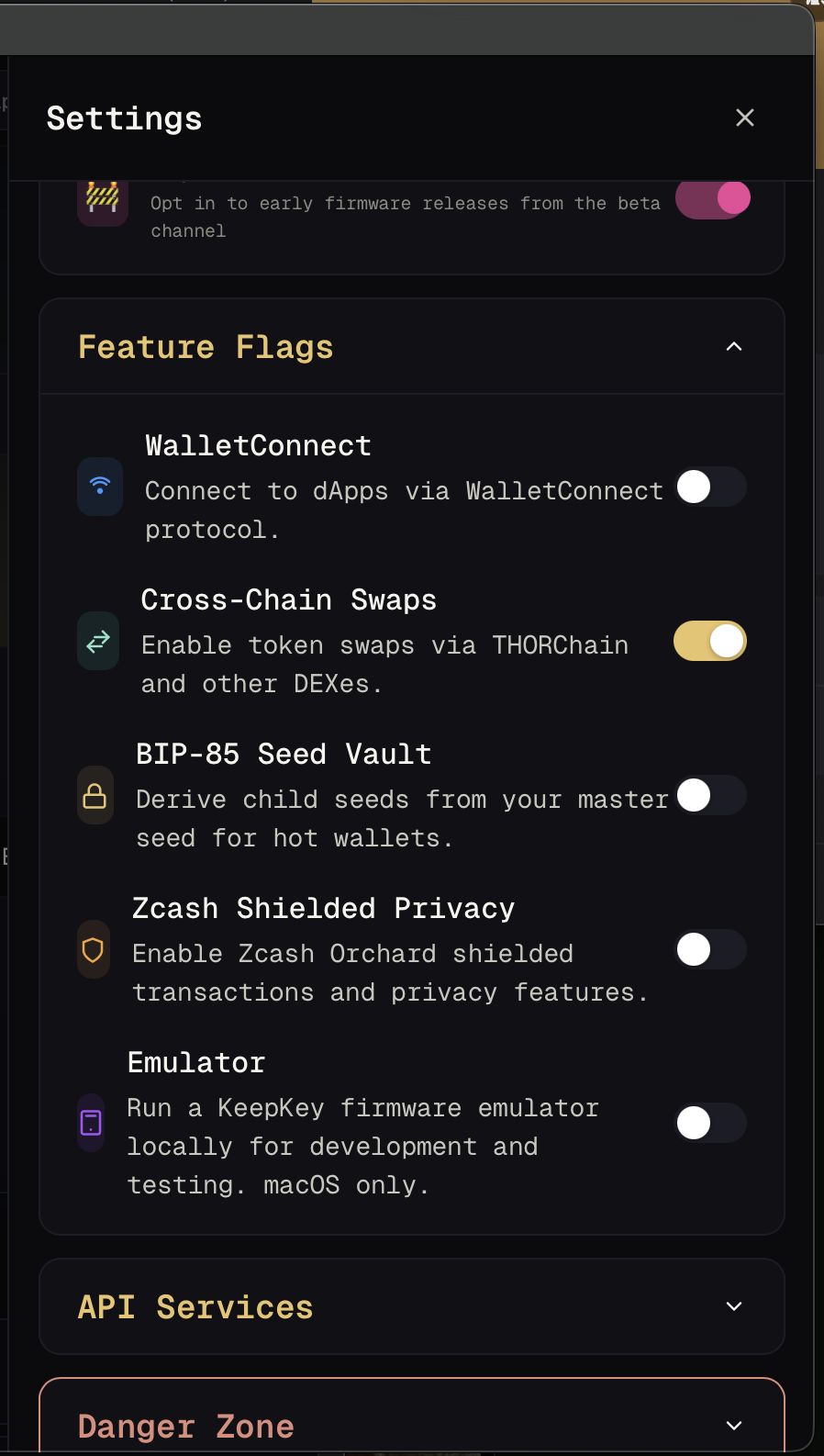 Feature flags let you enable or disable optional capabilities:
- **WalletConnect** — connect to dApps via the WalletConnect protocol
- **Cross-Chain Swaps** — enable token swaps via THORChain and other DEXes
- **BIP85 Seed Vault** — derive child seeds from your master seed for hot wallets
- **Zcash Shielded Privacy** — enable Zcash Orchard shielded transactions and privacy features
- **Emulator** — run a KeepKey firmware emulator locally for development and testing (macOS only)
## Signing policy
Feature flags let you enable or disable optional capabilities:
- **WalletConnect** — connect to dApps via the WalletConnect protocol
- **Cross-Chain Swaps** — enable token swaps via THORChain and other DEXes
- **BIP85 Seed Vault** — derive child seeds from your master seed for hot wallets
- **Zcash Shielded Privacy** — enable Zcash Orchard shielded transactions and privacy features
- **Emulator** — run a KeepKey firmware emulator locally for development and testing (macOS only)
## Signing policy
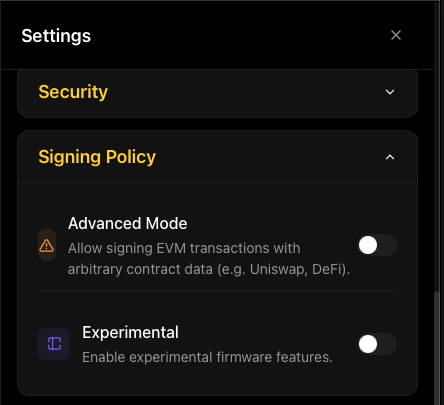 Signing policies let you require extra confirmation for certain operations:
- **High-value confirmations** — require a longer button press for large transactions
- **Unknown contract warnings** — show extra warnings when signing with dapps that haven't been verified
- **Experimental chains** — gate access to chains that are still in beta
Most users should leave the default policies on.
## API servers
Signing policies let you require extra confirmation for certain operations:
- **High-value confirmations** — require a longer button press for large transactions
- **Unknown contract warnings** — show extra warnings when signing with dapps that haven't been verified
- **Experimental chains** — gate access to chains that are still in beta
Most users should leave the default policies on.
## API servers
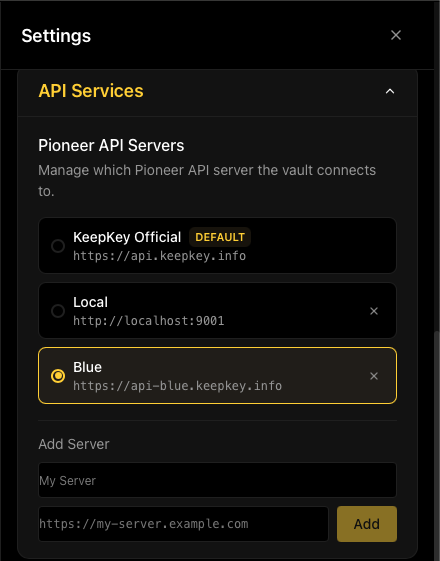 The **API bridge** is the local REST API (on `http://localhost:1646`) that lets external apps connect to your device. When you enable it, external apps running on the same machine can pair with the desktop application and request addresses, balances, and signatures from your KeepKey.
This is how the [browser extension](/docs/bex), the [mobile app](/docs/mobile) (over QR-code pairing), and any custom app built with the [SDK](/docs/sdk) communicate with your device.
### Why it's off by default
Because **every app that pairs gets the ability to request signatures from your device**. The signature request still has to be approved on the device itself — an external app cannot silently move funds — but leaving the API permanently enabled means:
- Any malicious app running on your computer could pair and flood you with signing prompts.
- Any process that tricks you into clicking "approve" can steal funds.
- The attack surface of your wallet goes from "just the desktop app" to "anything on your computer that can talk to `localhost:1646`".
By keeping the API off by default, the desktop application has a single narrow interface: the one you're looking at. No other process on your computer can reach the device.
### When to turn it on
Turn the API on when you want to:
- **Use the browser extension** to connect your KeepKey to dapps like Uniswap or OpenSea.
- **Pair the mobile app** so you can view your portfolio on the go.
- **Run a custom script or trading bot** built with `keepkey-vault-sdk`.
- **Test an integration** you're developing against the REST API.
Turn it off when you're done.
### Pairing and bearer tokens
When an app pairs with the API, you approve the pairing in the desktop application (showing you the app name and icon), and the app receives a bearer token. It uses that token on every subsequent request.
You can view, revoke, or re-pair individual apps here. Revoking a token takes effect immediately — the next request from that app will fail.
Only approve pairings you started yourself. An unexpected pairing request means something on your computer wants access you didn't give it — deny it.
## Danger zone
The **API bridge** is the local REST API (on `http://localhost:1646`) that lets external apps connect to your device. When you enable it, external apps running on the same machine can pair with the desktop application and request addresses, balances, and signatures from your KeepKey.
This is how the [browser extension](/docs/bex), the [mobile app](/docs/mobile) (over QR-code pairing), and any custom app built with the [SDK](/docs/sdk) communicate with your device.
### Why it's off by default
Because **every app that pairs gets the ability to request signatures from your device**. The signature request still has to be approved on the device itself — an external app cannot silently move funds — but leaving the API permanently enabled means:
- Any malicious app running on your computer could pair and flood you with signing prompts.
- Any process that tricks you into clicking "approve" can steal funds.
- The attack surface of your wallet goes from "just the desktop app" to "anything on your computer that can talk to `localhost:1646`".
By keeping the API off by default, the desktop application has a single narrow interface: the one you're looking at. No other process on your computer can reach the device.
### When to turn it on
Turn the API on when you want to:
- **Use the browser extension** to connect your KeepKey to dapps like Uniswap or OpenSea.
- **Pair the mobile app** so you can view your portfolio on the go.
- **Run a custom script or trading bot** built with `keepkey-vault-sdk`.
- **Test an integration** you're developing against the REST API.
Turn it off when you're done.
### Pairing and bearer tokens
When an app pairs with the API, you approve the pairing in the desktop application (showing you the app name and icon), and the app receives a bearer token. It uses that token on every subsequent request.
You can view, revoke, or re-pair individual apps here. Revoking a token takes effect immediately — the next request from that app will fail.
Only approve pairings you started yourself. An unexpected pairing request means something on your computer wants access you didn't give it — deny it.
## Danger zone
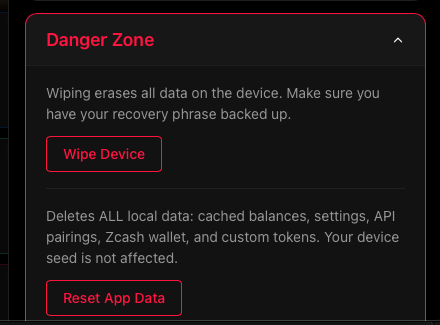 The danger zone contains two distinct operations — read the difference carefully:
- **Wipe Device** — erases all secrets from the KeepKey hardware. After this, your only way back is the recovery phrase. Do not wipe unless you have confirmed your phrase is correct and safely stored. Requires physical confirmation on the device.
- **Reset App Data** — deletes all *local app data only*: cached balances, settings, API pairings, Zcash wallet state, and custom tokens. **Your device seed is not affected.** Use this if the desktop app is in a bad state and you want a clean slate without touching the device.
If you are not sure which to use: **Reset App Data** is safe and reversible (the device keeps its keys). **Wipe Device** is permanent without your recovery phrase.
Step by step: [Wipe your KeepKey](/docs/desktop/wipe-device).
## Related
- [Firmware Updates](/docs/desktop/firmware) — update device firmware
- [BIP85](/docs/desktop/bip85) — derive child seeds
- [PIN](/docs/desktop/pin) — how scrambled PIN entry works
- [Passphrase](/docs/desktop/passphrase) — hidden wallets via passphrase
The danger zone contains two distinct operations — read the difference carefully:
- **Wipe Device** — erases all secrets from the KeepKey hardware. After this, your only way back is the recovery phrase. Do not wipe unless you have confirmed your phrase is correct and safely stored. Requires physical confirmation on the device.
- **Reset App Data** — deletes all *local app data only*: cached balances, settings, API pairings, Zcash wallet state, and custom tokens. **Your device seed is not affected.** Use this if the desktop app is in a bad state and you want a clean slate without touching the device.
If you are not sure which to use: **Reset App Data** is safe and reversible (the device keeps its keys). **Wipe Device** is permanent without your recovery phrase.
Step by step: [Wipe your KeepKey](/docs/desktop/wipe-device).
## Related
- [Firmware Updates](/docs/desktop/firmware) — update device firmware
- [BIP85](/docs/desktop/bip85) — derive child seeds
- [PIN](/docs/desktop/pin) — how scrambled PIN entry works
- [Passphrase](/docs/desktop/passphrase) — hidden wallets via passphrase