# Address Book
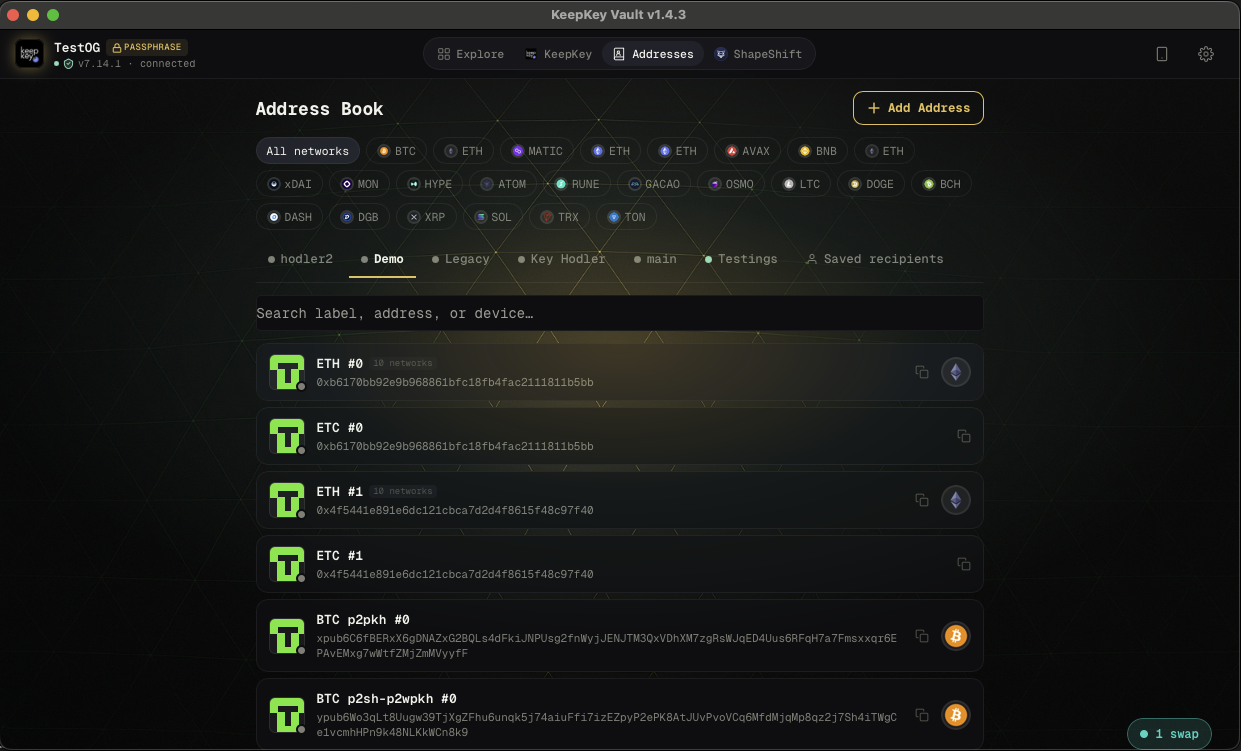
The **Addresses** tab is a personal address book for external addresses you send to regularly — exchange deposit addresses, your own cold storage, counterparties, or any address you want to label and reuse safely.
 ## Why label addresses
Every time you send, you paste or scan a recipient address. Without labels, you have no way to tell at a glance whether the address you just pasted is the right one. With labels — "Coinbase BTC deposit", "Alice", "my Ledger" — you can verify at the review screen that the recipient is who you think it is.
This is a second layer of protection against clipboard malware that swaps your copied address with an attacker's. If the label doesn't say what you expected, stop before building the transaction.
## Adding an address
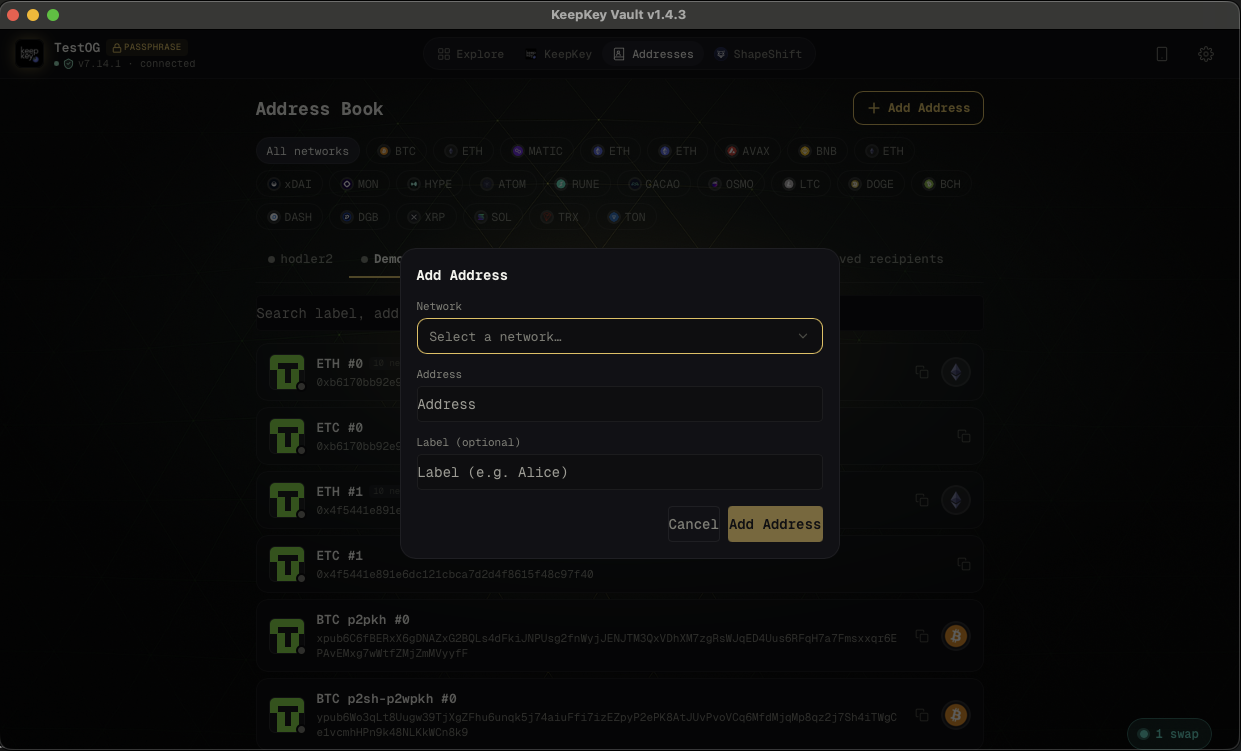
Click **+ Add Address**, choose the network, paste the address, and give it a label.
## Why label addresses
Every time you send, you paste or scan a recipient address. Without labels, you have no way to tell at a glance whether the address you just pasted is the right one. With labels — "Coinbase BTC deposit", "Alice", "my Ledger" — you can verify at the review screen that the recipient is who you think it is.
This is a second layer of protection against clipboard malware that swaps your copied address with an attacker's. If the label doesn't say what you expected, stop before building the transaction.
## Adding an address
Click **+ Add Address**, choose the network, paste the address, and give it a label.
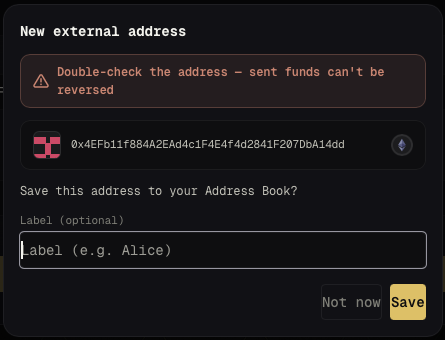
 You can also save directly from the send flow: when you paste a new address, the desktop application offers to save it with a label on the spot.
 ## Save an address the careful way
An Address Book entry is only as good as the moment you saved it. Do one careful check then, and every later send gets easier:
1. **Copy from the source.** The exchange's deposit page, or the person's own wallet — never your transaction history, which attackers can seed with lookalikes ([address poisoning](/docs/guides/address-poisoning)).
2. **Compare the full line** before you click Save. Put the source and the pasted address side by side and check them **in groups of four characters**, start to finish. Lookalike addresses are generated to match the first and last few characters, so the middle matters most.
3. **For a person, confirm out loud.** Call them and have them read the address from their own wallet's screen while you follow the pasted one ([how](/docs/guides/friends-and-family)).
4. **Pick the right network.** An address saved under the wrong network won't show up — or will match — where you don't expect it.
5. **Use a label that says who and what:** "Coinbase — BTC deposit", "Alice — ETH", "My cold storage — BTC". Avoid vague labels like "BTC 2".
## How labels protect you at send time
When you paste or pick a recipient, KeepKey Desktop checks it against your Address Book and shows the saved label next to the address.
## Save an address the careful way
An Address Book entry is only as good as the moment you saved it. Do one careful check then, and every later send gets easier:
1. **Copy from the source.** The exchange's deposit page, or the person's own wallet — never your transaction history, which attackers can seed with lookalikes ([address poisoning](/docs/guides/address-poisoning)).
2. **Compare the full line** before you click Save. Put the source and the pasted address side by side and check them **in groups of four characters**, start to finish. Lookalike addresses are generated to match the first and last few characters, so the middle matters most.
3. **For a person, confirm out loud.** Call them and have them read the address from their own wallet's screen while you follow the pasted one ([how](/docs/guides/friends-and-family)).
4. **Pick the right network.** An address saved under the wrong network won't show up — or will match — where you don't expect it.
5. **Use a label that says who and what:** "Coinbase — BTC deposit", "Alice — ETH", "My cold storage — BTC". Avoid vague labels like "BTC 2".
## How labels protect you at send time
When you paste or pick a recipient, KeepKey Desktop checks it against your Address Book and shows the saved label next to the address.
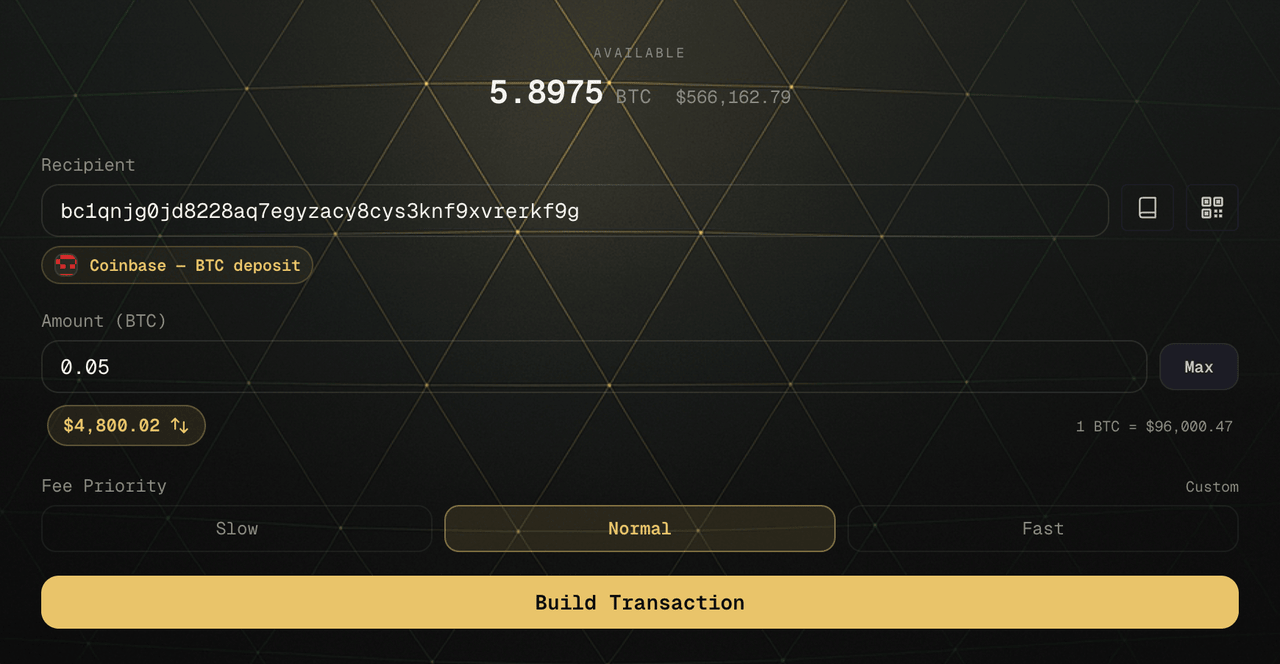 - **Label shown, and it's the one you meant** — good. Still read the full address on the KeepKey screen before you approve.
- **No label, or a "save this new address?" prompt, for someone you've paid before** — stop. The address you pasted isn't the one you saved. That's the signature of [clipboard swapping](/docs/guides/clipboard-swapping).
## Filtering by network
The address book is multi-chain. Use the network filter tabs at the top (All Networks, BTC, ETH, etc.) to narrow the list to a single chain.
## Related
- [Send & Receive](/docs/desktop/send-receive) — where saved addresses appear during the send flow
- [Verifying Transactions](/docs/desktop/verify-on-device) — why double-checking recipients matters
- [Real-world guides](/docs/guides) — family payments, exchanges, clipboard swapping, address poisoning
- **Label shown, and it's the one you meant** — good. Still read the full address on the KeepKey screen before you approve.
- **No label, or a "save this new address?" prompt, for someone you've paid before** — stop. The address you pasted isn't the one you saved. That's the signature of [clipboard swapping](/docs/guides/clipboard-swapping).
## Filtering by network
The address book is multi-chain. Use the network filter tabs at the top (All Networks, BTC, ETH, etc.) to narrow the list to a single chain.
## Related
- [Send & Receive](/docs/desktop/send-receive) — where saved addresses appear during the send flow
- [Verifying Transactions](/docs/desktop/verify-on-device) — why double-checking recipients matters
- [Real-world guides](/docs/guides) — family payments, exchanges, clipboard swapping, address poisoning