# Browser Extension
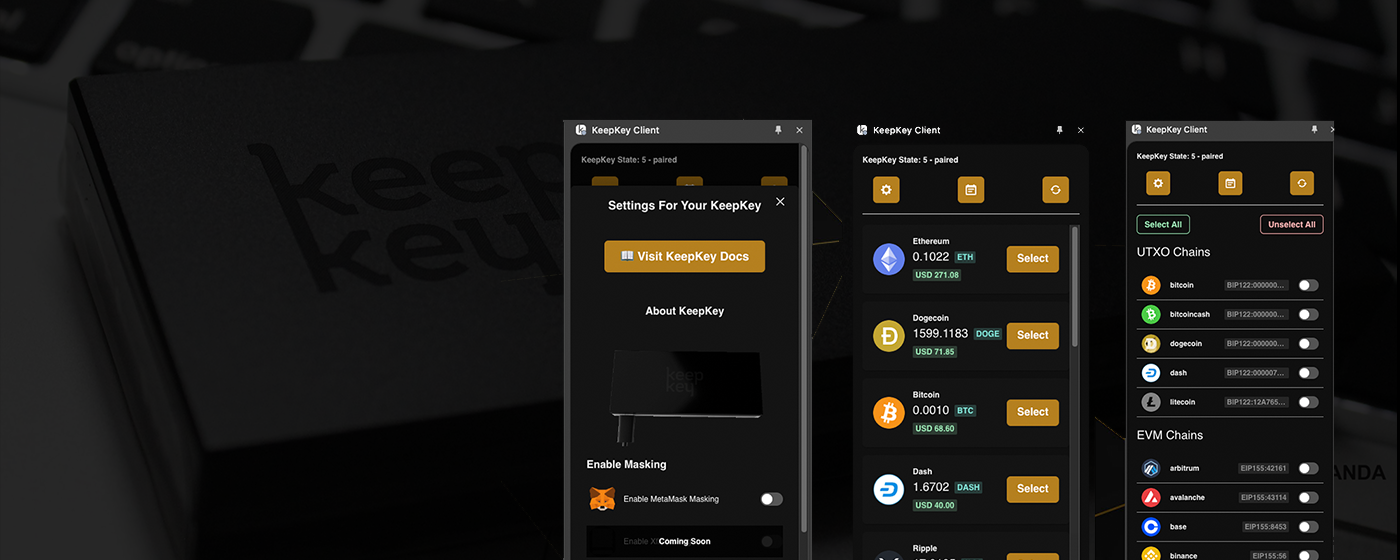
The KeepKey browser extension lets any EVM dapp treat your hardware wallet like a hot wallet. If a website understands `window.ethereum` — Uniswap, OpenSea, Farcaster frames, Lens, any MetaMask-compatible dapp — it understands the extension, with no extra integration work on the dapp's side.
 ## Why use the extension
- **Hardware-grade security in your browser.** Private keys never leave the device. Every signature is verified on the KeepKey screen before it's released.
- **One-click dapp connectivity.** Uniswap, OpenSea, Curve, Aave, 1inch, and thousands of other EVM dapps connect instantly.
- **Multi-chain.** Ethereum, Polygon, Arbitrum, Optimism, Base, BNB Chain, Avalanche — automatic network switching via the standard `wallet_switchEthereumChain` RPC.
- **Familiar UX.** The interface follows MetaMask conventions, so if you've used MetaMask you already know how it works. The difference is that every signature goes to your KeepKey.
## How it works
The extension injects the standard `window.ethereum` provider into every web page, which is the interface dapps use to request accounts and signatures. When a dapp calls `eth_requestAccounts` or `eth_sendTransaction`, the extension forwards the request to the KeepKey desktop application over the local REST API, which in turn asks your device to approve.
## Why use the extension
- **Hardware-grade security in your browser.** Private keys never leave the device. Every signature is verified on the KeepKey screen before it's released.
- **One-click dapp connectivity.** Uniswap, OpenSea, Curve, Aave, 1inch, and thousands of other EVM dapps connect instantly.
- **Multi-chain.** Ethereum, Polygon, Arbitrum, Optimism, Base, BNB Chain, Avalanche — automatic network switching via the standard `wallet_switchEthereumChain` RPC.
- **Familiar UX.** The interface follows MetaMask conventions, so if you've used MetaMask you already know how it works. The difference is that every signature goes to your KeepKey.
## How it works
The extension injects the standard `window.ethereum` provider into every web page, which is the interface dapps use to request accounts and signatures. When a dapp calls `eth_requestAccounts` or `eth_sendTransaction`, the extension forwards the request to the KeepKey desktop application over the local REST API, which in turn asks your device to approve.
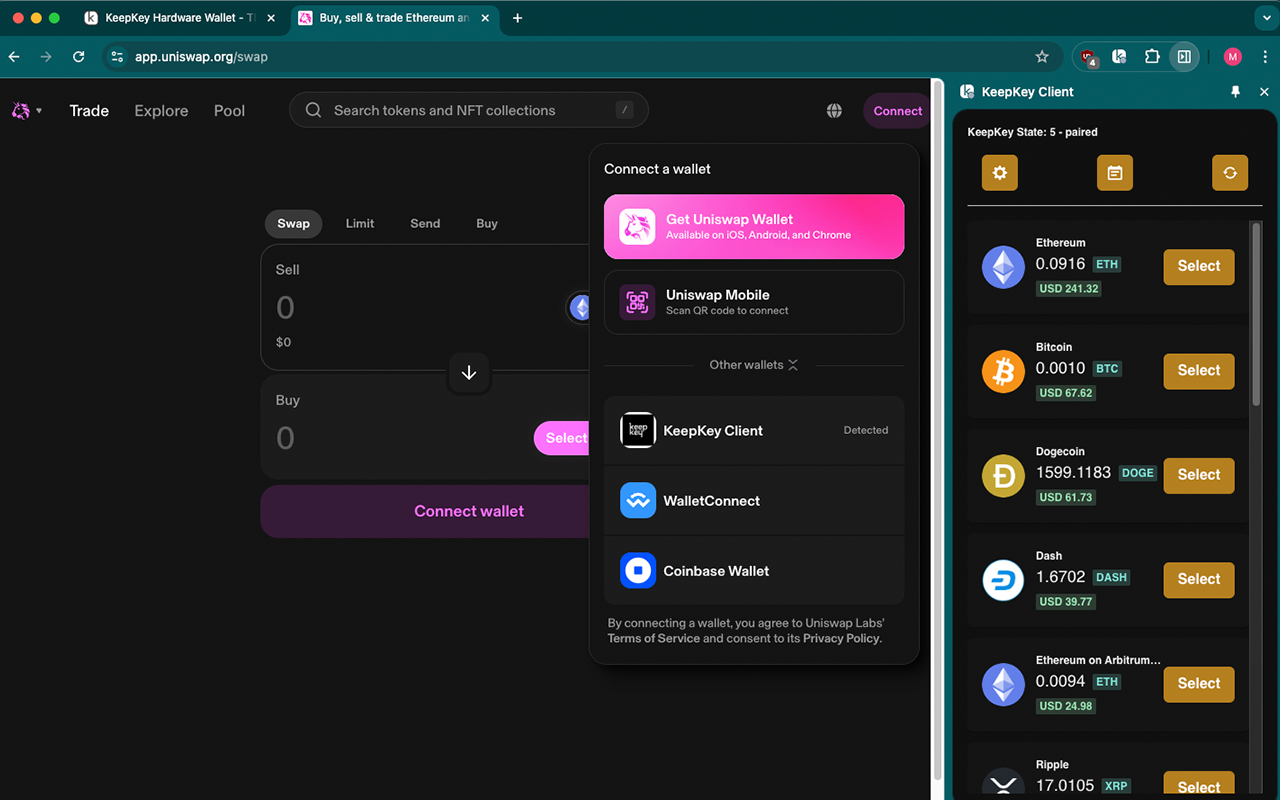 From the dapp's perspective, you're just another Web3 wallet. From your perspective, every signature goes through the hardware device.
## Requirements
The extension is available for **Chrome only**. It requires the KeepKey desktop application to be running with the **API bridge enabled**. The extension talks to the desktop app over `http://localhost:1646`, which in turn talks to the device.
1. [Install the desktop application](/docs/desktop/install)
2. Open **Settings → API Servers** and enable the API bridge
3. Install the Chrome extension from [keepkey.com/keepkey-browser-extension](https://keepkey.com/keepkey-browser-extension)
4. On first use, approve the extension's pairing request in the desktop app
See [Settings → API Servers](/docs/desktop/settings#api-servers) for why the API bridge is off by default and when to enable it.
## Home dashboard
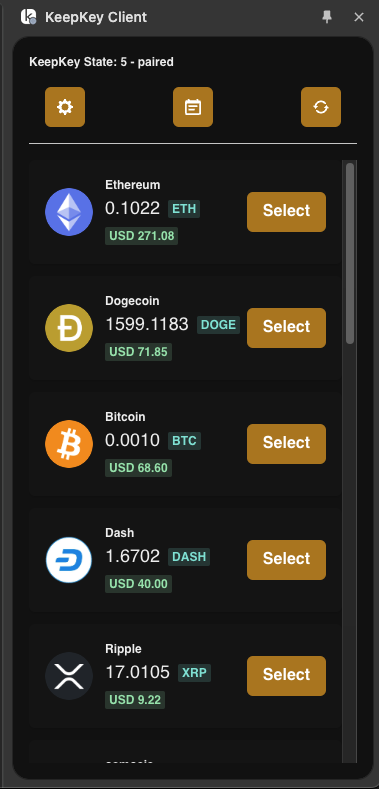
The extension's popup shows your balances, recent activity, and network selection at a glance.
From the dapp's perspective, you're just another Web3 wallet. From your perspective, every signature goes through the hardware device.
## Requirements
The extension is available for **Chrome only**. It requires the KeepKey desktop application to be running with the **API bridge enabled**. The extension talks to the desktop app over `http://localhost:1646`, which in turn talks to the device.
1. [Install the desktop application](/docs/desktop/install)
2. Open **Settings → API Servers** and enable the API bridge
3. Install the Chrome extension from [keepkey.com/keepkey-browser-extension](https://keepkey.com/keepkey-browser-extension)
4. On first use, approve the extension's pairing request in the desktop app
See [Settings → API Servers](/docs/desktop/settings#api-servers) for why the API bridge is off by default and when to enable it.
## Home dashboard
The extension's popup shows your balances, recent activity, and network selection at a glance.
 ## Supported chains
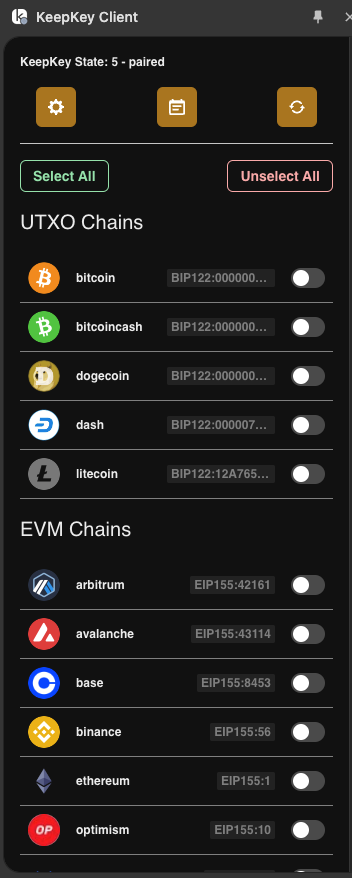 The extension supports all major EVM networks and bridges automatically when a dapp requests a chain switch.
## Featured dapp integrations
The extension supports all major EVM networks and bridges automatically when a dapp requests a chain switch.
## Featured dapp integrations
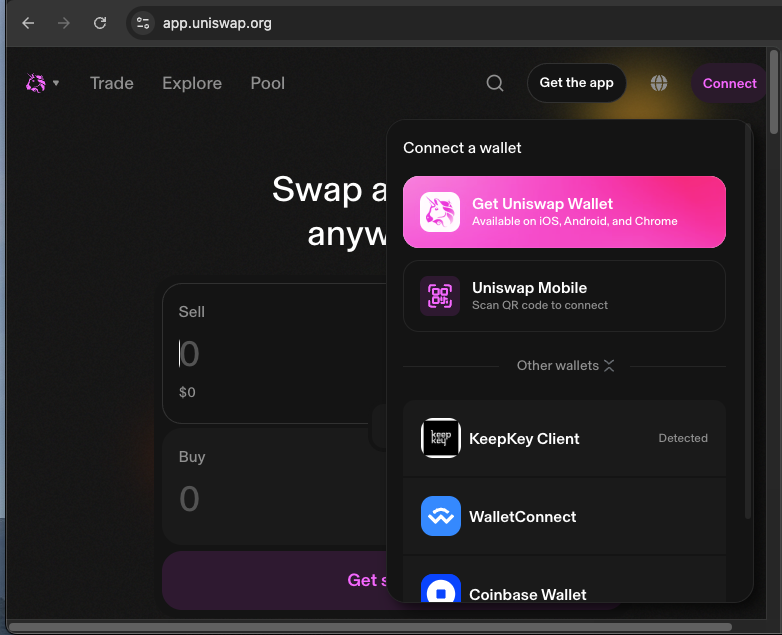 We regularly test the extension against popular EVM dapps. If you find one that doesn't work, [open an issue](https://github.com/keepkey/keepkey-vault/issues) and let us know.
## Security reminders
- **Always verify the dapp URL** before approving any signature. A malicious site can look identical to a real one.
- **Verify transaction details on the device.** The extension shows you a summary, but the device is the source of truth. Read [Verifying Transactions](/docs/desktop/verify-on-device).
- **Be careful with token approvals.** Granting "unlimited" allowance to a contract is the most common way people lose funds to bad contracts. Prefer specific amounts when you can.
- **Revoke extension access you don't need.** You can disconnect the extension from the desktop application's **Settings → API Servers** panel at any time.
## Related
- [Agent Mode (MCP)](/docs/bex/mcp) — let an AI agent inspect and drive the extension over the Model Context Protocol
- [Desktop Application](/docs/desktop) — the companion app the extension relies on
- [Settings → API Servers](/docs/desktop/settings#api-servers) — the security model
- [Verifying Transactions](/docs/desktop/verify-on-device) — always verify on device
We regularly test the extension against popular EVM dapps. If you find one that doesn't work, [open an issue](https://github.com/keepkey/keepkey-vault/issues) and let us know.
## Security reminders
- **Always verify the dapp URL** before approving any signature. A malicious site can look identical to a real one.
- **Verify transaction details on the device.** The extension shows you a summary, but the device is the source of truth. Read [Verifying Transactions](/docs/desktop/verify-on-device).
- **Be careful with token approvals.** Granting "unlimited" allowance to a contract is the most common way people lose funds to bad contracts. Prefer specific amounts when you can.
- **Revoke extension access you don't need.** You can disconnect the extension from the desktop application's **Settings → API Servers** panel at any time.
## Related
- [Agent Mode (MCP)](/docs/bex/mcp) — let an AI agent inspect and drive the extension over the Model Context Protocol
- [Desktop Application](/docs/desktop) — the companion app the extension relies on
- [Settings → API Servers](/docs/desktop/settings#api-servers) — the security model
- [Verifying Transactions](/docs/desktop/verify-on-device) — always verify on device